

Module 12: User Persistence
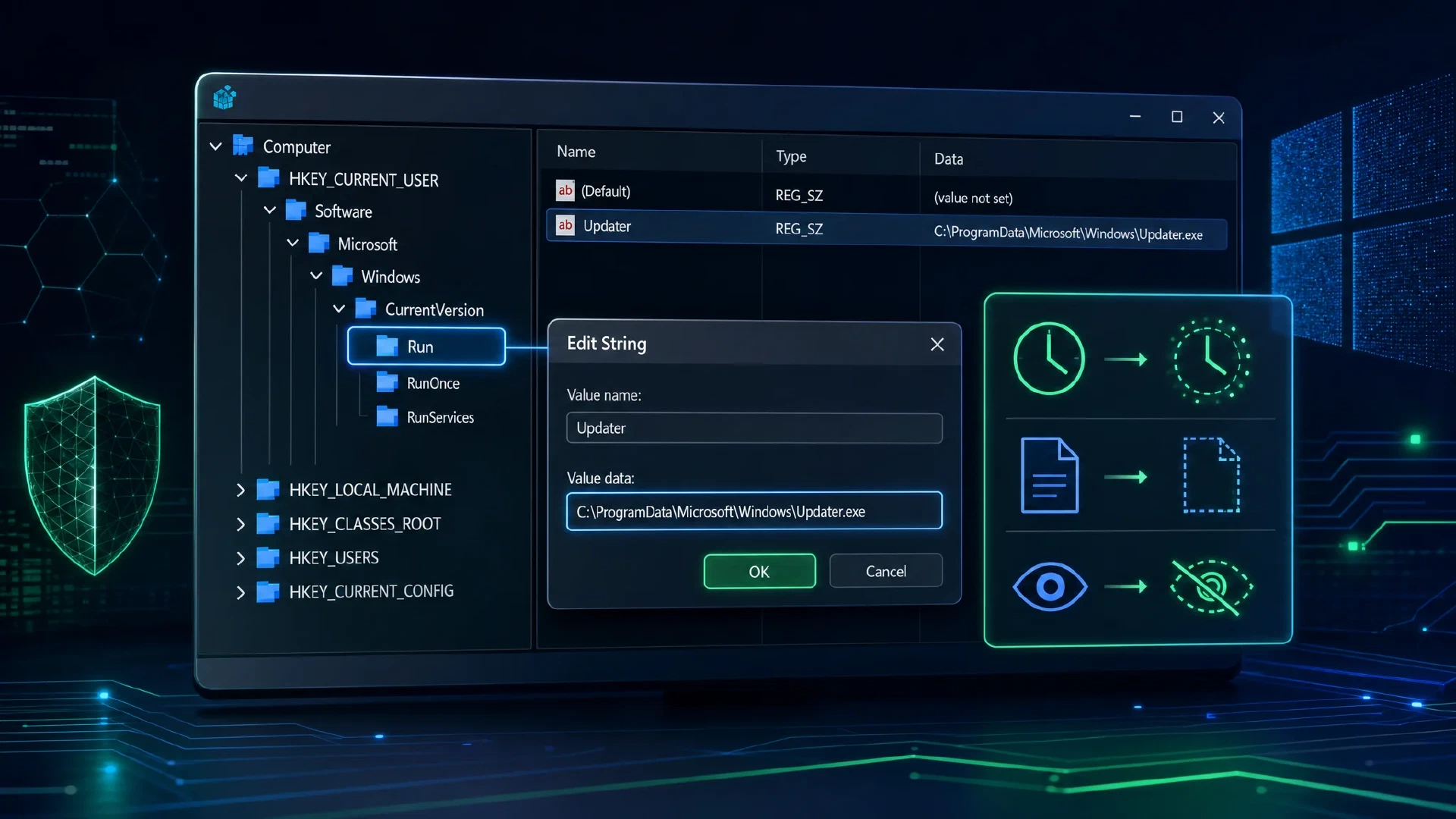
Table of Contents
← Return to the Red Team Course
User persistence arranges for an action to recur in a user’s context after a defined trigger. A configuration entry, a successful launch, and a verified removal are three separate outcomes. This module uses a visible Notepad startup entry in a disposable Windows VM to examine the complete lifecycle.
Allow about 20 minutes, plus two lab sign-ins. Use a dedicated test account and save your work before signing out.
What You Will Learn
- Distinguish logon-triggered startup from boot-triggered services.
- Explain user identity, executable availability, and policy dependencies.
- Inspect startup configuration before changing it.
- Observe a benign entry through creation, trigger, and removal.
- Create a lifecycle record with independent cleanup evidence.
| Term | Meaning |
|---|---|
| Startup entry | Configuration requesting execution at a defined trigger |
| Run value | Named registry value specifying a command at user logon |
| RunOnce value | Startup configuration intended for a single logon execution |
| HKCU | HKEY_CURRENT_USER, resolved for the calling context |
| Trigger | Event which makes the configured action eligible to run |
| Restoration | Return to the recorded baseline with verification |
Define the Persistence Requirement
Persistence is optional unless the assessment objective requires it. A short test with a controlled starting context might have no reason to create a recurring action. If recurrence is needed, define the trigger, account, duration, and removal owner before choosing a mechanism.
A Run entry uses logon, so a reboot without the relevant user signing in is not a complete test. A service with automatic startup follows a different lifecycle. User persistence also does not automatically increase the account’s permissions. Read Microsoft’s Run and RunOnce documentation .
Configuration success proves only the entry was written. The referenced executable must exist, the relevant user must encounter the trigger, and policy must permit the resulting action. Separate those dependencies in both your test and your report.
| Mechanism | Trigger context | Question to verify |
|---|---|---|
| User Run value | Relevant user’s logon | Which user hive and command? |
| User Startup shortcut | Relevant user’s logon | Which shortcut, target, and arguments? |
| Scheduled task | Configured trigger and principal | Which conditions and execution identity? |
| Automatic service | Service-control startup behavior | Which account, dependencies, and service state? |
Resolve the User Context
HKCU is context-dependent. It is not a universal alias for whichever person appears on the visible desktop. Record the calling account’s SID before interpreting a user startup entry. Read Microsoft’s predefined-key reference .
Profile portability is also conditional. Even if a profile-management system carries a registry entry to another machine, the executable, path, architecture, and applicable policies still need to match. A roaming profile is not a guarantee of execution across the environment.
Scope your claim to the account and machine observed. A successful test for one user does not establish recurrence for every user on the host. Record machine-level and user-level startup locations separately.
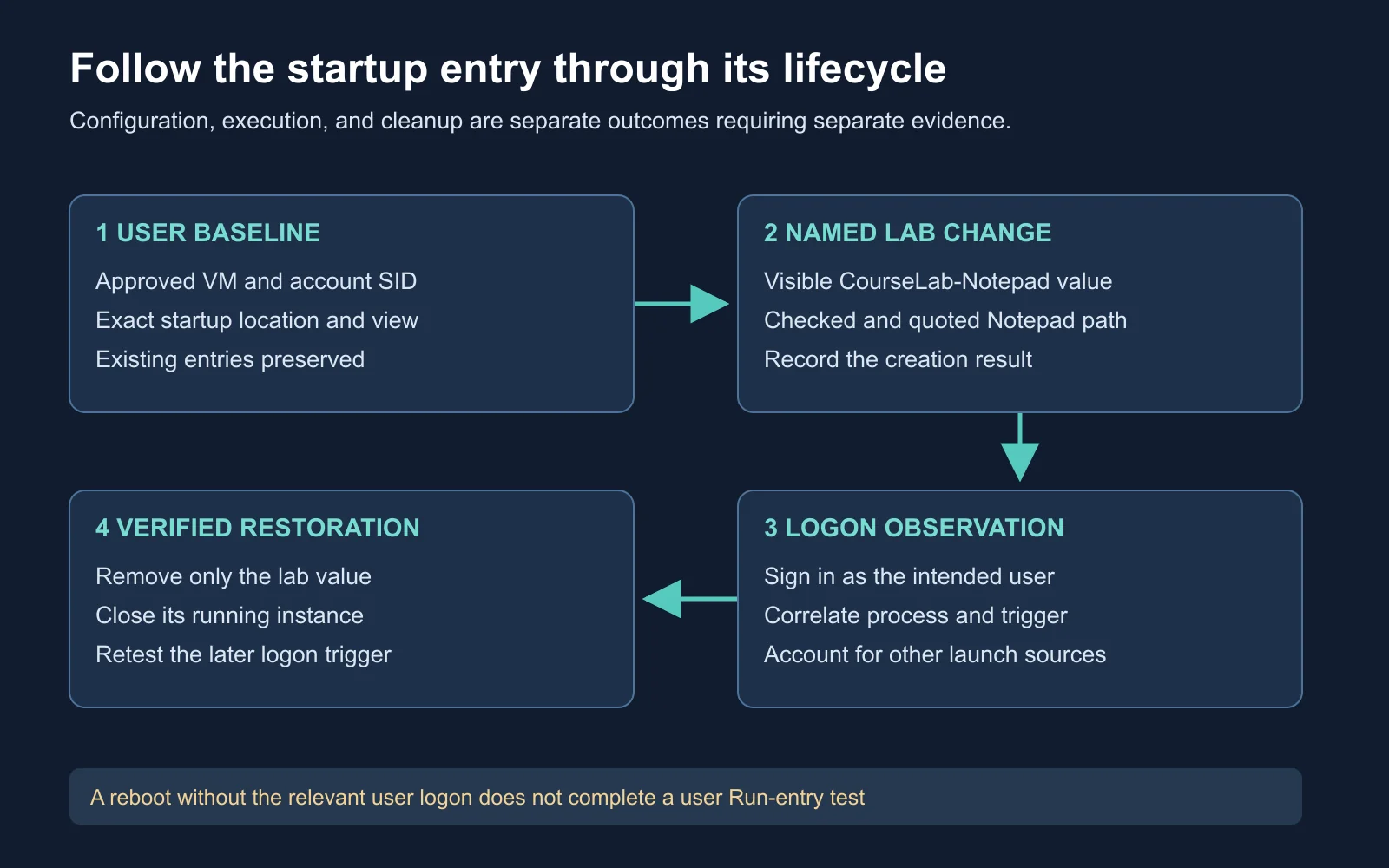
Removing configuration and stopping a running process are different cleanup tasks
Inspect Before Changing
Start with read-only queries in the test account’s shell. The first command records the SID, while the second displays values under the user Run key. A missing key or an access error is a result to document, not permission to create unrelated configuration.
whoami /user
reg query "HKCU\Software\Microsoft\Windows\CurrentVersion\Run"
reg query displays the selected key’s entries without changing them. The /v option, used later, restricts the request to a named value. Save the baseline output with the account and timestamp.
Read the reg-query reference
.
Autoruns provides a broader view of configured automatic-start locations. Select the appropriate user and inspect the Logon category, while recording any active filters. A hidden entry in a filtered view is not an absent entry. Read the Autoruns documentation .
| Baseline field | Purpose |
|---|---|
| Account SID | Identify the user context |
| Registry path and view | Reproduce the location inspected |
| Existing value names | Avoid overwriting another entry |
| Tool filters | Explain which entries the view omits |
| Executable path | Establish the intended benign target |
Create a Benign Lab Entry
Use native 64-bit PowerShell in a disposable 64-bit Windows VM with the dedicated account. This exercise assumes the Run key already exists and Notepad is installed at the checked system path. If either prerequisite is missing, use a prepared lab image rather than changing broader startup configuration.
The following code creates one visibly named value pointing to Notepad. It stops if the value already exists, checks the target file, and avoids a force-overwrite option. It does not copy an executable or contact a network endpoint.
$runPath = 'HKCU:\Software\Microsoft\Windows\CurrentVersion\Run'
$valueName = 'CourseLab-Notepad'
$notepadPath = Join-Path $env:SystemRoot 'System32\notepad.exe'
$runKey = Get-Item -LiteralPath $runPath -ErrorAction Stop

if ($runKey.GetValueNames() -contains $valueName) {
    throw 'The lab value already exists. Review the baseline first.'
}
if (-not (Test-Path -LiteralPath $notepadPath -PathType Leaf)) {
    throw 'The expected Notepad executable is missing.'
}
$expectedCommand = '"' + $notepadPath + '"'
New-ItemProperty -LiteralPath $runPath -Name $valueName `
    -PropertyType String -Value $expectedCommand -ErrorAction Stop
Parameter meanings: -LiteralPath uses the exact registry path, -Name selects the single new value, and -PropertyType String creates a string value. -Value stores the quoted command path, while -ErrorAction Stop prevents continuing past a reported error in the selected operation.
Read New-ItemProperty
.
Verify the stored value before testing logon. The query should show the visible lab name and the intended quoted path. Recheck the account SID if you opened a different shell or changed credentials.
reg query "HKCU\Software\Microsoft\Windows\CurrentVersion\Run" /v CourseLab-Notepad
Observe the Logon Trigger
Close existing Notepad windows, save the baseline and creation records, then sign out and back into the dedicated VM account. Observe whether a new Notepad instance appears and collect process evidence for the relevant window. Windows does not promise an immediate launch order for Run entries, so record the observation window rather than assuming a precise startup deadline.
Interpret the trigger carefully. Automatic application restoration or another startup entry also might launch Notepad. Correlate the new entry, the sign-in, and process evidence instead of treating a visible window as unique proof of its origin.
A missing launch calls for dependency checks. Verify the account, stored command, executable availability, startup policy, and recorded errors. Do not alter security settings merely to force the expected result.
| Observation | Supported conclusion |
|---|---|
| Registry value exists | Configuration creation succeeded |
| Relevant logon occurred | The intended trigger was exercised |
| New process correlated | Execution evidence supports the tested path |
| No visible window | Further evidence is needed to explain the outcome |
Verify Restoration Separately
Removal starts with identity. Use the same test account and compare its SID with the creation record. Recreate the variables in the new PowerShell session, then verify the stored command still matches the lab entry before removing the named value.
$runPath = 'HKCU:\Software\Microsoft\Windows\CurrentVersion\Run'
$valueName = 'CourseLab-Notepad'
$notepadPath = Join-Path $env:SystemRoot 'System32\notepad.exe'
$expectedCommand = '"' + $notepadPath + '"'
$runKey = Get-Item -LiteralPath $runPath -ErrorAction Stop

if ($runKey.GetValueNames() -notcontains $valueName) {
    throw 'The lab value is absent. Reconcile the account and evidence.'
}
if ($runKey.GetValue($valueName) -cne $expectedCommand) {
    throw 'The value changed. Review it before removal.'
}
Remove-ItemProperty -LiteralPath $runPath -Name $valueName -ErrorAction Stop
if ((Get-Item -LiteralPath $runPath).GetValueNames() -contains $valueName) {
    throw 'The lab value is still present.'
}
Remove-ItemProperty removes the selected value rather than the entire Run key. The prechecks protect against deleting an unexpected entry encountered during the exercise. Preserve the removal result and a fresh query.
Read Remove-ItemProperty
.
Configuration removal does not terminate Notepad. Close the specific lab window normally, then repeat the sign-out and sign-in test. Confirm the value remains absent and no execution attributable to the lab entry recurs.
| Cleanup layer | Evidence |
|---|---|
| Configuration | Named value absent in the correct user context |
| Running instance | Lab process or window closed normally |
| Later trigger | No recurrence attributable to the removed entry |
| Baseline | Unrelated startup entries preserved |
Understand Observation Limits
Startup configuration is observable regardless of whether a native utility or in-process extension writes it. MITRE documents registry Run keys and Startup folders as established persistence locations. The delivery mechanism does not erase the resulting configuration. Read ATT&CK T1547.001 .
A familiar value name is not proof of legitimate ownership. Evaluate the command, path, signer information, installation context, and observed behavior together. A file timestamp also does not establish provenance or explain who created the startup entry.
Broader startup locations have different consequences. Winlogon configuration, service settings, and application-loading mechanisms affect different triggers and process contexts. Inspect them as distinct mechanisms rather than treating every autostart entry as an interchangeable Run value.
| Evidence type | Useful question |
|---|---|
| Configuration record | What action is requested, for whom, and when? |
| File identity | Which executable or document is referenced? |
| Execution record | Did the intended process run under the expected context? |
| Removal record | Was the specific change reversed and retested? |
Work a Failed-Launch Case
Illustrative scenario: a user Run value appears in both the registry and Autoruns. After signing into another account, the reviewer sees no Notepad window and reports the persistence test failed. The original account’s hive still contains the lab entry.
Evaluate the report using trigger and identity evidence. Decide which part of the test was completed and which prerequisite was missed. Then write the narrowest justified next step.
Expected reasoning: configuration creation was confirmed, but the intended user’s logon was not tested. Signing into another account does not exercise the same user Run entry. Resume the test in the original lab account or record the untested trigger as a limitation.
| Case variation | Expected next check |
|---|---|
| Wrong user signed in | Reconcile SID and user hive |
| Correct user, missing executable | Confirm path and file availability |
| Correct entry, delayed launch | Review the observation window and execution evidence |
| Entry removed, window remains | Close the existing instance and test recurrence separately |
Watch the Autoruns Demonstration
Aaron Margosis’s Microsoft demonstration explains Autoruns and its startup views. Watch how selecting categories, users, and filters changes the visible configuration. Identify which view supports each stage of your lab record.
Watch on YouTube: Sysinternals: Autoruns deep dive .
Create the Lifecycle Record
Document the whole exercise, including an unexpected result if one occurred. Record the before-state, exact named change, trigger, evidence, removal, and later retest. If you stop before removal verification, leave the exercise open with a named owner.
Lab asset, account SID, and registry view:
Baseline timestamp and evidence:
Value name, type, and exact command:
Creation result:
Logon trigger and observation window:
Execution evidence and alternative explanations:
Removal result and fresh configuration query:
Existing process closure:
Later logon result:
Remaining differences from baseline:
A completed record proves more than a single screenshot of Notepad. Another reviewer should reconstruct the sequence and identify the evidence supporting restoration. Keep this record for the cleanup comparison in Module 15 .
Check Your Understanding
- Trigger: is a reboot without user logon a sufficient Run-entry test?
- Identity: which account determines the HKCU context?
- Portability: why does a copied profile entry not guarantee execution elsewhere?
- Cleanup: does removing the value stop a running process?
| Question | Expected reasoning |
|---|---|
| Trigger | The relevant user logon still needs to occur |
| Identity | The calling security context, verified against the recorded SID |
| Portability | Executable, path, policy, and environment dependencies remain |
| Cleanup | Configuration removal and process termination are separate actions |
Next Steps
Local privilege escalation concerns crossing a permission boundary, which user persistence alone does not establish. Continue to Module 13: Local Privilege Escalation to analyze prerequisites and supported impact. Return to the Red Team Course hub for the full sequence.