

Module 6: Home Network Security
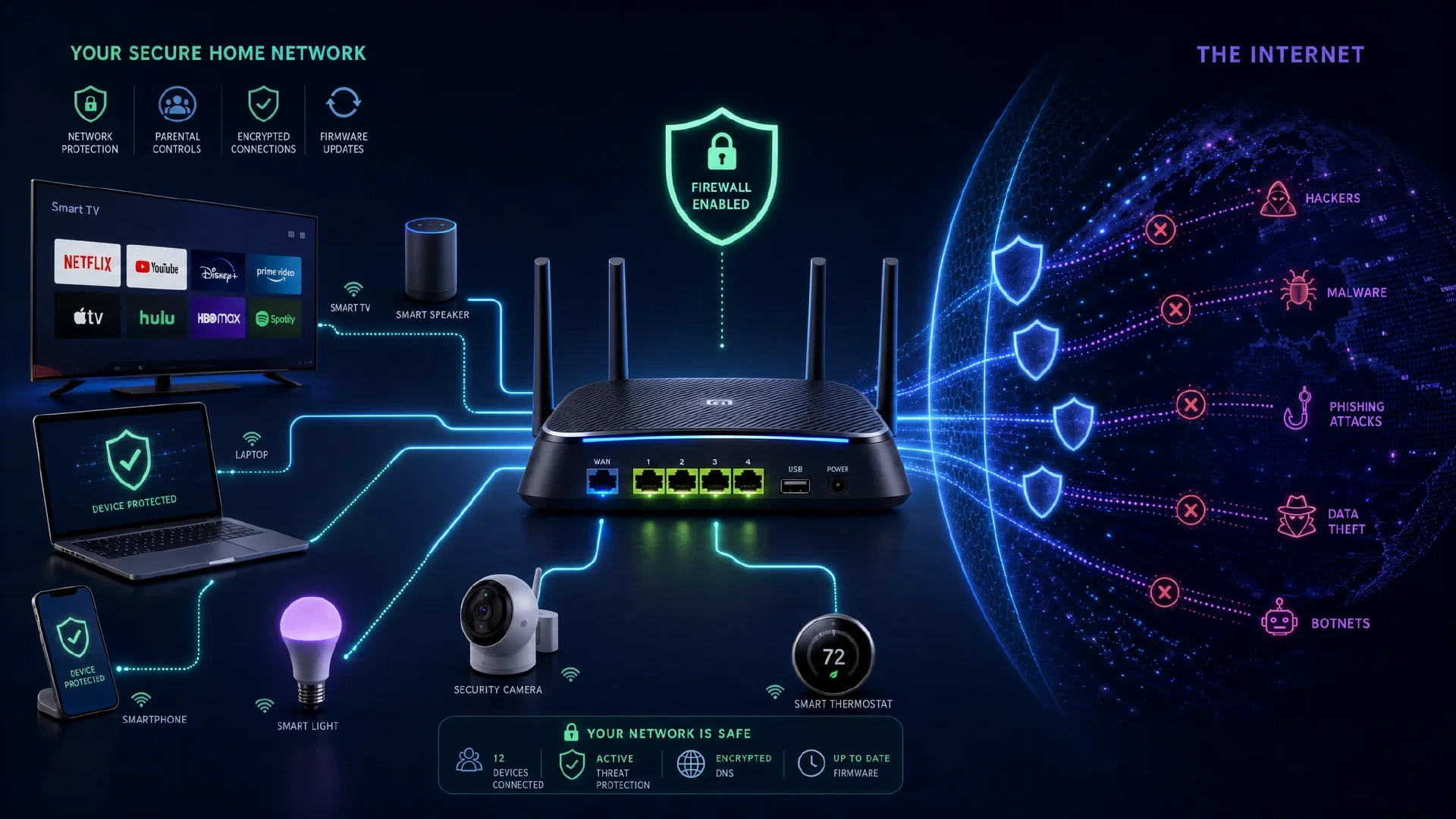
Table of Contents
← Return to the Personal Security Course
The router is the boundary between your devices and the internet. It decides what reaches your network, what your devices reach, and which of them talk to each other. Everything downstream inherits its configuration.
This module covers a hardening sequence in priority order, what a VPN genuinely changes, the two separate problems hiding under “secure DNS”, and how your WiFi network gets catalogued by strangers.
Budget about 40 minutes. The router work is done once and then mostly forgotten.
What You Will Learn
- Sequence router hardening by risk rather than by checkbox
- Explain which exposures WPS, UPnP, and remote administration each create
- Distinguish DNS privacy from DNS integrity
- Evaluate a VPN claim against what a VPN protects
- Describe how passive WiFi scanning builds public maps of network names and locations
- Produce a network record listing router settings, DNS configuration, and open ports
| Term | Meaning |
|---|---|
| NAT | Address translation which hides internal addresses behind one public address |
| UPnP | A protocol letting applications request inbound port mappings automatically |
| WPS | A push-button pairing method with a long history of weaknesses |
| DNS leak | DNS queries leaving through a different path than your tunnel |
| WiGLE | A crowdsourced database of observed WiFi networks and locations |
| MAC address | A hardware identifier, and a partial tracking signal on WiFi |
The Router Is the Boundary
Default configurations favor convenience over safety, and every convenience feature is an inbound path.
Three categories of problem account for nearly all home network compromise:
| Category | Examples | Consequence |
|---|---|---|
| Credential weakness | Default admin password, weak WiFi passphrase | Direct access to the network |
| Convenience services | UPnP, WPS, remote administration, cloud management | Attacker-chosen inbound access |
| Stale software | Unpatched router firmware | Exploitation of known vulnerabilities |
The router is the single device on your network which is both permanently internet-facing and rarely updated. The combination is why it belongs in the first hour of work rather than the last.
A Hardening Sequence
Work in this order. The early steps remove access paths, and the later steps reduce what an attacker learns.
1. Credentials
- Change the admin password before anything else. Default router credentials are published and indexed
- Use WPA3 where supported, falling back to WPA2. Both are acceptable, and neither is safe with a weak passphrase
- Use a long passphrase rather than a short complex string, following Module 1’s reasoning
2. Remove the Convenience Back Doors
| Feature | Risk | Action |
|---|---|---|
| WPS | PIN brute force and push-button abuse | Disable |
| UPnP | Applications open inbound ports without your knowledge | Disable unless a specific device requires it |
| Remote administration | Router admin panel reachable from the internet | Disable |
| Cloud management | Vendor-held control plane over your router | Disable if you do not use it |
| Telnet and unused services | Command-line access with weak or no authentication | Disable |
3. Firmware
Enable automatic updates if the vendor offers them. If not, check quarterly. A router which stopped receiving updates is a decision point: replace it, or place a maintained device in front of it.
4. Segmentation
- Use a guest network for visitors, which keeps them off the segment holding your computers and storage
- Put IoT devices on their own network where the router supports it, covered further in Module 9
- Verify nothing important is on the guest segment, since guest isolation is the point
5. Reduce Exposure
- Close forwarded ports you do not recognize. Every forwarded port is a deliberately opened inbound path
- Review the port forwarding list rather than assuming it is empty
- Change the router’s local address if you want to defeat scripts which target common defaults, though the benefit is modest
- Reduce transmit power if your network reaches further than you need
What a VPN Changes
A VPN moves trust, it does not remove it. This single sentence resolves most confusion about the technology.
| A VPN Does | A VPN Does Not |
|---|---|
| Hide traffic from the local network operator | Hide traffic from the sites you visit |
| Change your apparent source address | Make you anonymous to a logged-in service |
| Protect traffic on untrusted WiFi | Protect against malware on your device |
| Shift DNS resolution to the provider | Prevent fingerprinting by the destination site |
A paid, reputable VPN provider is the recommendation for two scenarios: using untrusted WiFi, and preventing an internet provider from compiling a browsing record.
Two configuration points matter:
- Use WireGuard or OpenVPN. Avoid PPTP and SSTP, which are obsolete protocols with known weaknesses
- Confirm DNS goes through the tunnel. A DNS leak sends your lookups in plaintext outside the tunnel, which defeats part of the purpose
The honest limit: a VPN provider sees everything your internet provider would have seen. You are choosing who holds the record, not eliminating it.
If your requirement is anonymity rather than confidentiality, Tor is the appropriate tool and a VPN is not. Tor routes through multiple relays so no single party sees both who you are and what you requested.
DNS: Two Separate Problems
People treat “secure DNS” as one thing. It is two, and they are solved differently.
| Problem | What Is At Risk | Solution |
|---|---|---|
| Privacy | Your provider observes every domain you resolve | DNS over HTTPS or DNS over TLS |
| Integrity | An attacker in the path returns a forged answer | DNSSEC validation, plus encryption |
DNS-over-HTTPS addresses privacy. DNSSEC addresses integrity. Encrypting your DNS does not validate the answers, and validating them does not hide the questions.
Two honest caveats about encrypted DNS:
- It moves trust rather than eliminating it. Your resolver sees your queries instead of your internet provider, so the resolver’s policy is the thing to evaluate
- It bypasses network-level filtering, including parental controls and corporate policy, which is not always what you want
One genuine security benefit beyond privacy: encrypted DNS removes DNS spoofing as a practical attack path on hostile networks, which matters on public WiFi.
Inspect the addressing of a network with local tools: the CIDR Subnet Calculator for IPv4 ranges, and the IPv6 Address Expander for the addresses most home networks now also carry.
WiFi Exposure Beyond Your Network
Your network name is public. Every device broadcasting an SSID is announcing it to anything in range, and crowdsourced wardriving projects have been cataloguing those observations for years.
The practical implications:
| Practice | Reason |
|---|---|
| Do not put personal details in the SSID | Names, flat numbers, and device models identify both you and your hardware |
| Know SSIDs and locations get published | Crowdsourced databases map networks to places, which correlates to a physical address |
| Enable MAC randomization on devices | Reduces the ability to track one device across multiple networks |
| Understand hiding the SSID is weak | It is trivially discoverable from client traffic, and it breaks some devices |
This site maintains two mapping projects in this space, both useful for understanding what public WiFi observations reveal: OpenRoaming and Hotspot 2.0 Map and Flock Finder . They are demonstrations of how much is inferable from passive scanning rather than tools for your own network.
Assess your own exposure by checking what your neighbourhood already reveals, then decide whether your SSID adds anything an observer did not already have.

The Network Record
NETWORK RECORD
Router model:            ______________________
Firmware version:        ______________________  auto-update: on / off
Admin password changed:  yes / no
WiFi security:           WPA3 / WPA2 / other
WiFi passphrase:         in vault? yes / no

Disabled:
  WPS:                   yes / no
  UPnP:                  yes / no
  Remote administration: yes / no
  Cloud management:      yes / no

DNS:
  Resolver:              ______________________
  Encryption:            DoH / DoT / none
  DNSSEC validation:     on / off / unknown
  Leak test passed:      yes / no

Segments:
  Guest network:         enabled / disabled
  IoT network:           enabled / disabled / unsupported
  Devices on guest:      ______________________

Forwarded ports (should be empty or intentional):
  - ______________________  purpose: __________
Next Steps
- Continue to Module 7 and reduce what your phone reports: Mobile Device Security
- Change the router admin password and disable WPS and UPnP now, which takes about five minutes
- Review the port forwarding list and remove anything you do not recognize
- Check for DNS leaks if you use a VPN, then confirm validation separately
- Explore addressing with the CIDR Calculator and IPv6 Expander
- Read the organizational counterpart: Network Security Checklist