
Tailscale Aperture: Configure AI Clients for Inference and MCP in 2026

Table of Contents
Introduction
Tailscale Aperture gives AI clients one tailnet-connected gateway for model inference and Model Context Protocol (MCP) tools. Each client must use a route that matches its API protocol. MCP tools use a separate endpoint, and Aperture grants control which models and connectors each Tailscale identity can access.
This guide explains how to configure Codex, Claude Code, Claude Desktop, OpenCode, and Hermes on macOS, Linux, and Windows. It covers CLI and desktop settings, shows how to discover model IDs for your own identity, and includes an anonymized prompt you can reuse when setting up another device or Aperture instance.
Route choice: Endpoint paths depend on your gateway and each API protocol. A Responses route such as /codex does not serve Anthropic Messages or MCP traffic. Confirm the gateway hostname and each client’s inference route. Discover model IDs through your own Aperture access before changing client settings.
Key Takeaways
- Model traffic needs the API route for its client protocol.
- MCP traffic uses the separate
/v1/mcpendpoint. - Gateway permissions must allow your Tailscale identity to use each model and connector.
- Client configuration proves setup only. Check a real request and one MCP tool call.
How the routes fit
| Purpose | Client request | Aperture route | What the route serves |
|---|---|---|---|
| Codex and Responses-compatible models | OpenAI Responses API | Usually /v1. A custom path such as /codex is deployment-specific. | Model inference |
| Claude model inference | Anthropic Messages API | Gateway base URL. Aperture handles /v1/messages | Claude-compatible inference |
| MCP tools | Streamable HTTP MCP | /v1/mcp | Tools and resources from configured connectors |
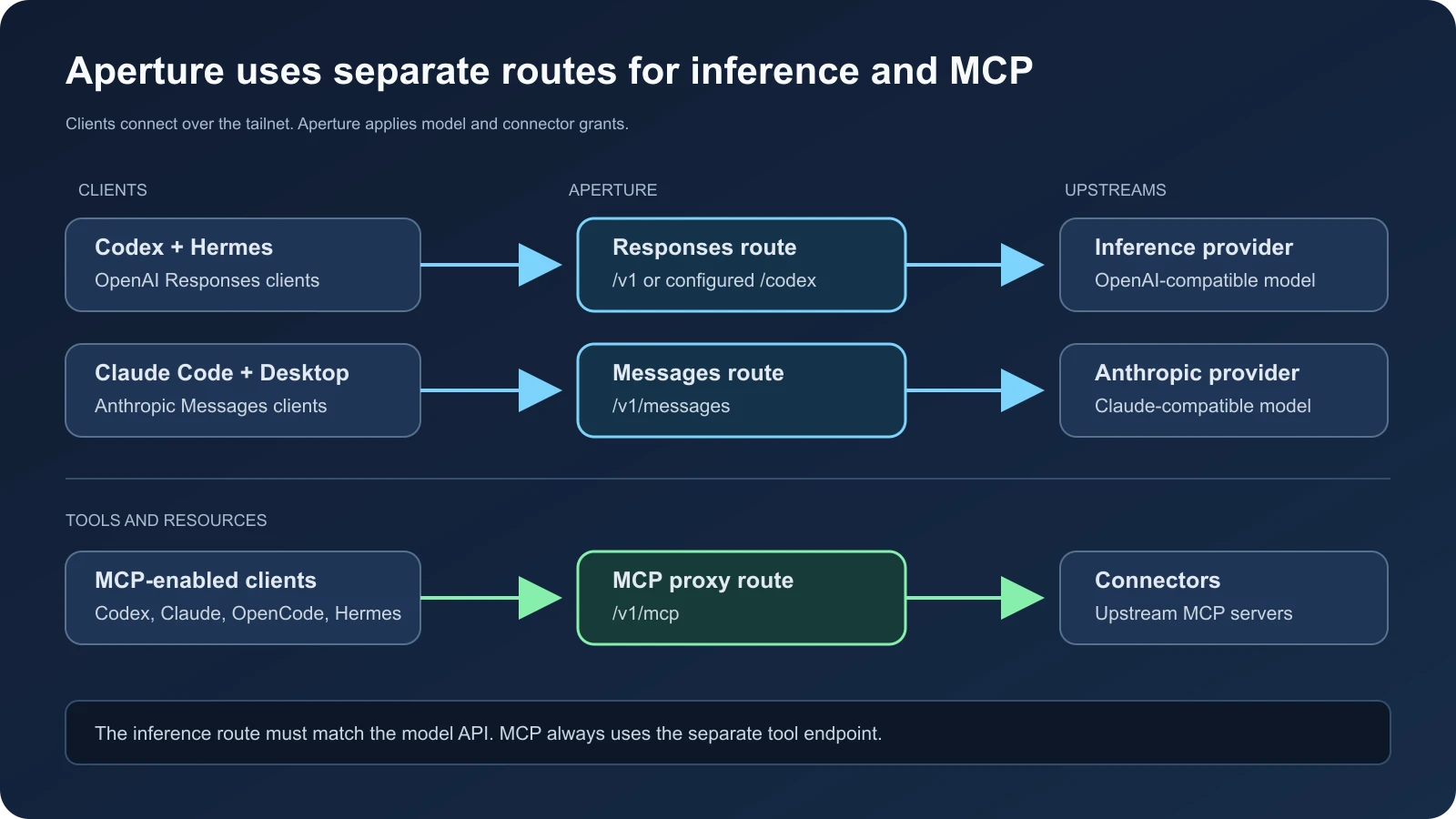
Model inference and MCP traffic use separate Aperture endpoints
Provider roots: Aperture appends client request paths to its provider base URL. Set the provider’s upstream baseurl to the provider API root. Do not add /v1 to an upstream base URL when the incoming path already includes /v1. See the
Aperture configuration reference
for URL construction, model registration, and grants.
Prepare the gateway
Before editing, ask an Aperture administrator for these values:
- Gateway hostname: Use
http://for most clients connected to the tailnet. Claude Desktop inference requireshttps://with a trusted certificate. - Inference routes: OpenAI Responses and Anthropic Messages use different request formats.
- Model IDs: Discover models available to your Tailscale identity with the model-list endpoint below. Use literal IDs returned for that identity.
- Authentication: Check whether the client sends a placeholder API key or a user credential.
- MCP endpoint: Usually
http://<APERTURE_HOST>/v1/mcpfor tailnet clients. Claude Desktop inference requires HTTPS with a trusted certificate. - Access grants: Check model and connector permissions for your Tailscale identity.
Network access: The client device must reach the gateway over the tailnet. A hostname alone does not grant model or tool access. Aperture denies access unless a matching grant allows the model or connector.
Find models available to your user
Query the model list from a device connected to the same tailnet. Aperture uses the device’s Tailscale identity and returns models granted to that user, as described in the model grant guide :
# macOS or Linux
curl -fsS http://<APERTURE_HOST>/v1/models
# Windows PowerShell, call curl.exe to avoid the legacy curl alias
curl.exe -fsS http://<APERTURE_HOST>/v1/models
Read the result: Use each returned id as the model ID. Check metadata.provider.id to identify its Aperture provider. Match the client to a model that supports its API format. For example, Claude Desktop requires an Anthropic Messages model. The Aperture
Models directory
also lists model identifiers available to the signed-in user.
Missing models: If a model you expect does not appear, ask an Aperture administrator to check the provider configuration and your model grant. The endpoint does not let users grant themselves access.
URL scheme: Tailscale recommends http:// for most clients connected to the same tailnet. WireGuard encrypts that traffic. Claude Desktop requires https:// and a certificate trusted by the operating system. Use the scheme shown for each client below.
Add an inference provider
OpenAI Responses: Add the upstream provider to Aperture and enable the API format used by the client. For an OpenAI upstream, add a provider fragment like this:
{
  "providers": {
    "openai": {
      "baseurl": "https://api.openai.com",
      "apikey": "<UPSTREAM_PROVIDER_KEY>",
      "models": ["<MODEL_ID>"],
      "compatibility": {
        "openai_chat": true,
        "openai_responses": true
      }
    }
  }
}
Anthropic Messages: Use the Anthropic API root, the x-api-key authorization format, and anthropic_messages compatibility. The model ID must also appear in the provider’s models list. Use an Anthropic provider fragment like this:
{
  "providers": {
    "anthropic": {
      "baseurl": "https://api.anthropic.com",
      "apikey": "<UPSTREAM_PROVIDER_KEY>",
      "authorization": "x-api-key",
      "models": ["<CLAUDE_MODEL_ID>"],
      "compatibility": {
        "anthropic_messages": true
      }
    }
  }
}
Configuration edits: Replace each placeholder with your upstream values. Add fragments to the existing Aperture configuration. Preserve the rest of the current file. Set compatibility flags for the APIs your provider supports.
Access grants: Aperture controls user access to each model or connector. Give each intended Tailscale user a narrow grant. This example grants one user access to one provider model and one connector:
{
  "grants": [
    {
      "src": ["<TAILSCALE_USER>"],
      "app": {
        "tailscale.com/cap/aperture": [
          {"role": "user", "models": "openai/<MODEL_ID>"},
          {"connectors": ["teamtools/**"]}
        ]
      }
    }
  ]
}
Model grant: Use the provider ID and model ID in the grant pattern. The
connector setup guide
shows the current connectors.servers setup. Aperture’s older top-level mcp.servers configuration is deprecated.
Add an MCP connector
MCP connector: Aperture connects to upstream MCP servers and exposes tools at /v1/mcp:
{
  "connectors": {
    "servers": {
      "teamtools": {
        "protocol": "mcp",
        "url": "<UPSTREAM_MCP_ENDPOINT>"
      }
    }
  }
}
Connector URL: Use the upstream server’s complete MCP endpoint. Then grant your Tailscale user access to teamtools/** or to a narrower tool pattern. The
MCP proxy reference
explains the single client endpoint and connector behavior.
Codex CLI and desktop
Shared settings: Codex CLI and the desktop app use the same configuration. On macOS and Linux, edit ~/.codex/config.toml. On Windows, edit %USERPROFILE%\.codex\config.toml (the same path is available as ~/.codex/config.toml in shells that expand the home directory). The
Codex app overview
says the desktop app picks up configuration from Codex CLI. Codex user settings live in ~/.codex/config.toml. The
configuration basics
document user-level provider and MCP fields. Add the provider to this file, restart the app, then confirm the provider and model appear in the UI.
model = "<MODEL_ID>"
model_provider = "aperture"

[model_providers.aperture]
name = "Aperture Proxy"
base_url = "http://<APERTURE_HOST>/v1"
wire_api = "responses"
requires_openai_auth = true
supports_websockets = false
Optional fields: These two values match one Codex provider setup. Keep them only when your gateway and Codex configuration require them. Tailscale’s current
Codex Aperture guide
omits them, uses wire_api = "responses", and says Aperture injects upstream credentials. Use the exact Responses URL from your gateway administrator. /codex is a deployment-specific route. Tailscale’s documented default is /v1.
MCP configuration: Add the server to the same user config:
[mcp_servers.aperture]
url = "http://<APERTURE_HOST>/v1/mcp"
enabled = true
Verify Codex: Run codex mcp list, then start a new session and inspect /mcp. The server list proves registration. A listed tool and one successful tool call prove discovery and execution. The
Codex configuration reference
documents user-level provider and MCP settings.
Claude Code CLI
Protocol: Claude Code uses Anthropic Messages. Point the global Claude Code settings file at the Anthropic-compatible Aperture gateway. Use ~/.claude/settings.json on macOS and Linux, or %USERPROFILE%\.claude\settings.json on Windows. In PowerShell, use the equivalent $HOME\.claude\settings.json. The route must serve /v1/messages. Codex Responses uses a different protocol and route. Tailscale recommends HTTP for Claude Code on the tailnet because WireGuard encrypts the connection.
{
  "apiKeyHelper": "echo '-'",
  "env": {
    "ANTHROPIC_BASE_URL": "http://<APERTURE_HOST>"
  }
}
Client authentication: Aperture’s client guide uses a placeholder from apiKeyHelper because Aperture injects the upstream credential. For Claude subscription passthrough, the Aperture Anthropic provider must forward the user’s Claude credential. For subscription passthrough, leave ANTHROPIC_API_KEY and ANTHROPIC_AUTH_TOKEN unset. Those variables replace the subscription credential. Follow the current
Claude Code Aperture instructions
for your Claude Code version and
Anthropic’s gateway guide
for gateway authentication options.
MCP over HTTP: Add the endpoint with:
claude mcp add --transport http --scope user aperture http://<APERTURE_HOST>/v1/mcp
claude mcp list
Verify Claude Code: Start a session and run /mcp to confirm the connection. Anthropic recommends HTTP for remote MCP servers in its
MCP documentation
.
Claude Desktop GUI
Separate settings: Claude Desktop has a third-party inference screen. This setting routes Claude Desktop model requests through Aperture. MCP configuration remains a separate step.
- In Claude Desktop for macOS or Windows, select Help > Troubleshooting > Enable Developer Mode. On Linux beta, use the same menu if present. Restart the app if prompted. If the menu is absent, update Claude Desktop and consult the platform-specific release notes.
- Select Developer > Configure Third-Party Inference.
- Set Connection type to Gateway and Credential kind to Static API key.
- Enter
https://<APERTURE_HOST>as the Gateway base URL. Use the full hostname covered by a trusted TLS certificate. - Enter a non-empty placeholder such as
apertureas the gateway key. Aperture ignores the placeholder and authenticates through the tailnet. - Leave custom inference headers empty.
- Add an enabled model using an exact ID returned by
GET /v1/modelsfor your Tailscale identity. Filter for an Anthropic Messages model. Enter its model ID, display name, and optional tier alias manually. Claude Desktop does not discover models in this screen. - Select Save Changes, then Apply Changes. Quit and reopen Claude Desktop.
Protocol check: The
Aperture Claude Desktop guide
says Claude Desktop uses Anthropic Messages at /v1/messages. Do not enter the Codex /codex route or select an OpenAI-compatible connection type.
Connect Claude Desktop to MCP
Private MCP access: Run a local stdio bridge on the same computer as Claude Desktop. Add this to Claude Desktop’s local MCP configuration:
{
  "mcpServers": {
    "aperture": {
      "command": "npx",
      "args": ["-y", "mcp-remote", "http://<APERTURE_HOST>/v1/mcp"]
    }
  }
}
Bridge behavior: The local process reaches Aperture through the computer’s Tailscale connection. Use the configuration path for your OS: macOS, ~/Library/Application Support/Claude/claude_desktop_config.json; Windows, %APPDATA%\Claude\claude_desktop_config.json; Linux beta, open Settings > Developer > Edit Config and use the path Claude Desktop opens. The Linux path can vary by package. Restart Claude Desktop, then inspect the connector list and run one harmless tool call. The
mcp-remote project
documents this local-to-remote bridge.
Remote connectors: Anthropic’s Settings > Connectors flow needs a remote server reachable by Anthropic’s service. A tailnet-only hostname is private to your devices, so use the local bridge for the private endpoint. If you expose a public MCP service, configure its authentication and permissions before adding a cloud connector. See Anthropic’s remote MCP connector guide .
OpenCode CLI and desktop
Shared settings: OpenCode CLI and desktop read the same OpenCode configuration. Current OpenCode V2 documentation uses the providers map for custom providers and nests MCP servers under mcp.servers. This example uses the OpenAI-compatible chat endpoint at /v1. Check for OpenAI Chat Completions support in your Aperture provider before using this model path.
Global config: On macOS and Linux, edit ~/.config/opencode/opencode.json. On Windows, use %USERPROFILE%\.config\opencode\opencode.json. Add an OpenAI-compatible provider and replace <MODEL_ID> with the exact Aperture model ID. OpenCode also accepts opencode.jsonc in the same directory for comments. The
configuration reference
explains precedence between global and project settings.
{
  "$schema": "https://opencode.ai/config.json",
  "model": "aperture/<MODEL_ID>",
  "providers": {
    "aperture": {
      "env": ["APERTURE_API_KEY"],
      "package": "@opencode/ai/providers/openai-compatible",
      "settings": {
        "baseURL": "http://<APERTURE_HOST>/v1"
      },
      "models": {
        "<MODEL_ID>": { "modelID": "<MODEL_ID>" }
      }
    }
  },
  "mcp": {
    "servers": {
      "aperture": {
        "type": "remote",
        "url": "http://<APERTURE_HOST>/v1/mcp",
        "oauth": false
      }
    }
  }
}
Client authentication: oauth: false skips OpenCode’s default OAuth flow. Aperture identifies the caller through Tailscale. OpenCode also requires a provider auth entry, so set APERTURE_API_KEY=- in the local environment. Aperture uses the Tailscale identity and injects the upstream credential. The desktop app must receive the variable too. If it does not inherit your shell environment, run /connect in the app and enter - for Aperture. Do not put the upstream provider key in this file. OpenCode’s
provider guide
and
MCP guide
cover the current format. Run opencode mcp list to check the server, then use /mcps in the app to inspect status.
Hermes CLI and desktop
Shared settings: Hermes Agent stores named providers and MCP servers in ~/.hermes/config.yaml on macOS and Linux. Native Windows installs use %LOCALAPPDATA%\hermes\config.yaml. Run hermes config path to confirm the active file on your system. HERMES_HOME can override the default location. Local Hermes Desktop uses the same Hermes home and profile as the CLI. If Desktop connects to a remote Hermes gateway, configure Aperture on the machine running Hermes, then confirm the server reaches the tailnet. See the
Hermes Desktop guide
for the local and remote setup.
Responses provider: Add a named provider. The api value must match the Responses endpoint for your Aperture instance:
providers:
  aperture:
    api: "http://<APERTURE_HOST>/v1"
    transport: codex_responses
    default_model: "<MODEL_ID>"
    # Add key_env only if your Aperture setup requires a client key.
    # key_env: APERTURE_API_KEY

model:
  provider: "custom:aperture"
  default: "<MODEL_ID>"
Protocol selection: For OpenAI Chat Completions, set transport: chat_completions. For Anthropic Messages, select transport: anthropic_messages and use the Anthropic Messages gateway URL. Hermes uses a named provider’s api, transport, and default_model fields in the current
provider guide
.
MCP configuration: Add Aperture MCP to the same YAML file:
mcp_servers:
  aperture:
    url: "http://<APERTURE_HOST>/v1/mcp"
    enabled: true
Verify Hermes: Run hermes mcp and inspect each connection in the interactive server picker. Local Desktop exposes the same profile configuration. Hermes documents
remote HTTP MCP servers
and the full
MCP configuration reference
.
Verify both paths
Run separate checks for model inference and MCP:
- Confirm the device has Tailscale connectivity and can reach the gateway. For Claude Desktop, confirm the gateway presents a trusted TLS certificate.
- Send a short prompt through each configured client. Confirm a matching request appears in Aperture’s session list.
- Confirm the selected model ID matches a model granted to your Tailscale identity.
- Open each client’s MCP status screen or list command. Confirm the Aperture server connects and exposes expected tools.
- Call one read-only tool. Check the returned content against the upstream source.
- Review the Aperture logs if the model call or tool call fails. Do not treat a saved config as proof of a successful request.
| Symptom | Check |
|---|---|
| Model request returns 404 or 405 | Confirm the client endpoint uses the right route and protocol. Do not reuse /codex for Anthropic Messages or MCP. |
| Model is unavailable | Query /v1/models as the intended Tailscale user. Check that the exact ID appears and that its API format matches the client. Ask an administrator to check missing provider entries or grants. |
| Request is unauthorized | Check whether the client needs a placeholder, a bearer token, or subscription passthrough. Never copy an upstream provider key into a public project file. |
| MCP server is listed but no tools appear | Check /v1/mcp, connector health, connector grants, and the client’s network path to Aperture. |
| Claude Desktop cannot connect to a private MCP URL | Run a local bridge such as mcp-remote or use an approved public connector with suitable authentication. |
Recreate the setup on another device
New device: Install the same client and connect the device to the tailnet first. Query /v1/models from the new device to discover models granted to its Tailscale identity. Copy configuration structure and keep credentials local. Replace <APERTURE_HOST>, <MODEL_ID>, and <UPSTREAM_MCP_ENDPOINT> with values from the target Aperture instance. Keep a separate endpoint for each API protocol, then configure the /v1/mcp path for tool traffic. Finally, verify one model request and one MCP tool call.
Multiple gateways: Use a separate configuration for each Aperture instance. A device needs a Responses endpoint for Codex and Hermes, an Anthropic Messages endpoint for Claude, and the MCP aggregation endpoint for tools. Save API credentials in each client’s local secret store or environment variable. Do not copy API keys inside shared config.toml, opencode.json, config.yaml, or a public repository.
Reusable Aperture setup prompt
Copy this anonymized prompt into your coding assistant. Replace the placeholders with your gateway details. The assistant must query Aperture as your Tailscale identity before selecting model IDs.
Configure my existing Tailscale Aperture gateway and the AI clients installed on this device.

Clients in scope: Codex CLI and desktop, Claude Code, Claude Desktop, OpenCode CLI and desktop, Hermes CLI and desktop.

First detect whether this device runs macOS, Linux, or Windows, identify the active shell (for example, zsh, bash, or PowerShell), and use that platform's paths and command syntax throughout. Inspect the current gateway, Tailscale connection, client versions, and existing client settings first. Read current official documentation. Preserve unrelated configuration and back up each file before editing. Do not guess hostnames, model IDs, API routes, or credentials. Keep upstream provider keys in Aperture, not in client files or this repository.

Discover my available models from this Tailscale-connected device:
1. Query `http://<APERTURE_HOST>/v1/models` as the Tailscale identity used by my clients. Use the gateway's documented custom model-list URL if it differs.
2. Read each model's `id` and `metadata.provider.id`. This list reflects the models granted to my identity. Do not substitute the administrator's model list or invent IDs.
3. Match model API compatibility to each client. Codex uses OpenAI Responses. Claude clients use Anthropic Messages. OpenCode and Hermes need a configured compatible provider and transport.
4. Reuse an existing client default when possible. If a client needs a default and I have no preference, show me the compatible models and ask me to choose. Claude Desktop needs the exact model ID entered manually.
5. If the endpoint returns no suitable model, check provider and grant settings only if I have admin access. Otherwise report which model access an administrator must add. Do not grant access to yourself.

Locate the actual Aperture deployment and its configuration source. Do not assume a file path or replace the whole configuration. OpenAI Responses requires `openai_responses`. Anthropic clients require `anthropic_messages`. MCP connectors belong under the current `connectors.servers` configuration and clients connect through `/v1/mcp`.

Before changing a shared gateway, prepare the minimal provider, connector, and grant diff. Apply it only when I have admin authority and this request authorizes gateway changes. If I lack that authority, report the exact proposed changes for the instance owner. Never create or broaden grants without the owner’s explicit authorization. Preserve all existing gateway settings.

Configure each installed client using its current official format and the OS-specific location:
- Codex CLI and desktop share `~/.codex/config.toml` on macOS/Linux and `%USERPROFILE%\.codex\config.toml` on Windows. Set the Aperture provider, a compatible model, `wire_api = "responses"`, and MCP under `mcp_servers`.
- Claude Code uses `ANTHROPIC_BASE_URL` and remote HTTP MCP. Use `~/.claude/settings.json` on macOS/Linux and `%USERPROFILE%\.claude\settings.json` on Windows.
- Claude Desktop uses Developer Mode, Configure Third-Party Inference, Gateway, Static API Key, a trusted HTTPS gateway URL, and a model ID discovered for my user. Use a local `mcp-remote` bridge for private tailnet MCP. Find the MCP config through Settings > Developer > Edit Config when available. Otherwise use the documented path for the detected OS.
- OpenCode uses its current V2 `providers` schema and `mcp.servers`. Its global config is `~/.config/opencode/opencode.json` on macOS/Linux and `%USERPROFILE%\.config\opencode\opencode.json` on Windows. Set `oauth: false` for Aperture MCP. Use a local placeholder API key where required.
- Hermes uses a named provider, a transport matching the model API, and `mcp_servers`. Use `~/.hermes/config.yaml` on macOS/Linux. On Windows, check `hermes config path`, typically `%LOCALAPPDATA%\hermes\config.yaml`. Check whether Hermes Desktop shares the local Hermes profile.

Use HTTP for tailnet traffic where the client supports it. Claude Desktop inference requires HTTPS with a trusted certificate. Use `/v1` unless this gateway documents a custom route.

Restart configured clients. Verify one model request per client in Aperture and one harmless, read-only MCP tool call. Report the models discovered for my identity, clients and files changed, verification results, and any remaining administrator action. Do not install software, expose the gateway publicly, commit, or publish.
Conclusion
A working Aperture setup depends on three things: a reachable gateway, a model route that matches the client protocol, and grants for the models and MCP connectors you need. The same configuration patterns work across macOS, Linux, and Windows, but each client stores settings in its own OS-specific location.
Discover model IDs as the Tailscale identity that will use them. Configure model inference and /v1/mcp separately, then verify a real request and a read-only tool call from each client. When you move to another device or Aperture instance, reuse the structure in this guide, confirm that instance’s routes and grants, and keep credentials in local secret storage.
Next Steps
MCP practice: For the difference between a saved server and a verified tool call, read MCP Server Setup: Permissions, Tool Tests, and Safe Removal . For the broader self-hosted architecture, see Hybrid Agentic AI Fleet: Tailscale, LiteLLM, and Hermes .

Related Posts