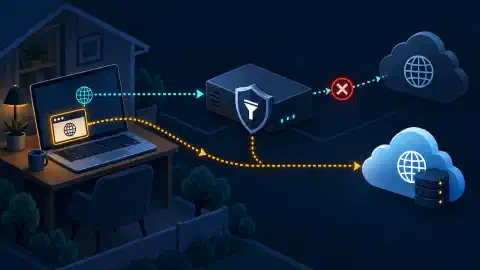

Test Browser DNS and WebRTC Leaks With a VPN

Table of Contents
A VPN connection icon does not prove every browser request follows the same route. Test your public IP, DNS resolver, and WebRTC addresses separately. Each result answers a different question. This guide gives you a repeatable check and a way to investigate an unexpected result.
Key Takeaways
- Compare two states: Record the same tests before and after connecting your VPN.
- Read each result separately: A changed public IP does not establish where DNS queries went.
- Check WebRTC candidates: Look for a public address from outside your intended route. A private address has a different meaning.
- Change one setting: Retest after each VPN, browser, or DNS adjustment.
Before You Begin
Use the browser and network connection you intend to protect. Know whether your VPN should cover the whole device or only selected apps. If your VPN uses split tunneling, record whether the test browser belongs inside the tunnel. Keep the VPN client’s DNS policy available for comparison.
This procedure uses BrowserLeaks IP , DNS , and WebRTC pages. The service sees your connection address when you visit. Its DNS test asks the browser to resolve 50 random names, according to the test description. Avoid running an external test on a managed or restricted network without approval. Do not paste credentials, internal hostnames, or private browsing records into a test site.
Warning: Keep your exact IP addresses out of public screenshots and support posts. Record whether addresses match your expected ISP or VPN route. Share the actual values only through an approved support channel.
Know What Each Test Shows
| Check | What to compare | What the result does not prove |
|---|---|---|
| Public IP | Address seen by an ordinary website | Which resolver handled DNS |
| DNS resolver | Servers observed during new name lookups | Where every app sends DNS |
| WebRTC | Local and public connection candidates | Which candidate a later call uses |
The public IP page reports the address used for its web request. The DNS page triggers new lookups and reports the resolvers serving them. The WebRTC page checks addresses exposed through a browser peer connection. RFC 8828 explains why WebRTC’s connection candidates sometimes contain addresses beyond the one seen by an ordinary web request, especially with split tunnels or proxies.
A DNS server owned by your VPN provider, a separate resolver selected inside the VPN, or a browser-selected encrypted resolver all produce different names in a test. A resolver name alone does not identify a leak. Compare the name with the policy you intended to use.
Record a Baseline
Disconnect the VPN only if your situation permits an untunneled baseline. Open the three test pages in one normal browser profile. Run the DNS test and wait for the result. Record the following without publishing exact addresses:
| Field | Baseline note |
|---|---|
| Browser and version | Name, version, and relevant privacy extensions |
| Network | Home Wi-Fi, mobile hotspot, or another approved network |
| Public IPv4 and IPv6 | Whether each belongs to your ordinary connection |
| DNS result | Resolver names or operators shown |
| WebRTC result | Public, private, or .local candidates shown |
If you cannot disconnect the VPN, start with the expected VPN route and mark the untunneled baseline as unavailable. Do not infer your ordinary ISP address from a location label or a map. Location databases sometimes differ from the actual network operator.
Repeat With the VPN Connected
Connect the VPN and confirm the client reports a working tunnel. Reload each test page in the same browser profile. Run the DNS test again to create fresh lookups. Record both IPv4 and IPv6 results when the service reports them.
Compare the results in this order:
- Public IP: The web request should show an address consistent with the VPN exit or the route you deliberately configured. An unchanged ordinary ISP address is a routing problem if the browser should be inside the tunnel.
- DNS: Compare each reported resolver with your VPN and browser DNS settings. An ISP resolver outside the intended tunnel deserves investigation. A named third-party resolver is expected if you deliberately selected the resolver in the browser.
- WebRTC: Compare the public WebRTC candidate with the VPN exit and the baseline public IP. A baseline ISP public address appearing only in WebRTC is a concern when all browser traffic should use the VPN.
- Private addresses: An address in the
RFC 1918 private ranges
, or a
.localcandidate, differs from a public ISP address. Record the local entry and decide whether the site should learn the address.
The
WebRTC IP handling standard
describes how an app learns additional public or private addresses through ICE candidate discovery. Chromium’s
mDNS host candidate design
replaces some private addresses with .local names. A blank WebRTC result is inconclusive if JavaScript, the API, or the test server did not work. A blank result does not prove complete protection.
Expected Result: Your browser’s ordinary web request and public WebRTC candidates follow the route you chose. DNS results match the VPN or browser resolver policy you recorded.
Investigate a DNS Mismatch
First check whether the browser chooses its own resolver. Firefox’s DNS over HTTPS settings show an active status and a protection level. Default protection falls back to the system resolver under some conditions and respects network signals. Increased and Custom protection use a selected provider with backup behavior. Max protection warns when secure resolution fails. The status and exception list matter more than a toggle alone.
Chrome’s Secure DNS guide describes automatic mode and a custom provider. Automatic mode falls back to an unencrypted lookup if secure lookup fails. A custom provider does not default to unencrypted mode. Managed devices and parental controls restrict this setting. Check the current browser UI before changing a managed policy.
If the browser’s resolver is not the cause, compare the VPN client’s DNS setting, split-tunnel app list, operating system resolver, and IPv6 route. Change one item, then repeat the DNS test. A browser DNS test measures the tested browser’s lookup path. The result does not establish how another app resolves names. If your network uses DNS filtering , test one domain you intentionally block and one you allow. Do not treat a missing advertisement as proof of resolver routing.
Investigate a WebRTC Mismatch
Check whether the browser is excluded from the VPN tunnel or uses a proxy outside the intended route. Test again after correcting the route. Do not disable IPv6 or WebRTC as a first response to a single ambiguous result. The WebRTC standard describes a tradeoff between address exposure and direct call performance. Restricting candidates or forcing a proxy affects video calls and other peer connections.
If your browser or VPN offers a documented WebRTC IP handling control, read its current description and choose a policy consistent with your use of calls. Retest the public candidate. A local address alone does not prove your ISP public address escaped the VPN. An exposed public ISP address, compared with a different VPN HTTP address, is the stronger signal.
Keep a Test Record
| Field | Result to enter |
|---|---|
| Date and browser | Version, profile, extensions, and network |
| Expected route | Whole-device VPN, split tunnel, or browser proxy |
| Before and after | Public IP operator, DNS operator, WebRTC public candidate |
| Mismatch | Which result disagreed with the intended policy |
| Single change | Setting changed and the reason |
| Retest | New result and any remaining uncertainty |
Run the check again after browser, VPN, or network configuration changes. One clean result covers the tested browser, profile, network, and moment. A clean result does not establish anonymity or cover every app. If you are still choosing a browser, use the site’s privacy browser comparison for features, then run this test on your own setup.

Related Posts