

Test Guest and IoT Isolation on a Mesh Wi-Fi Network
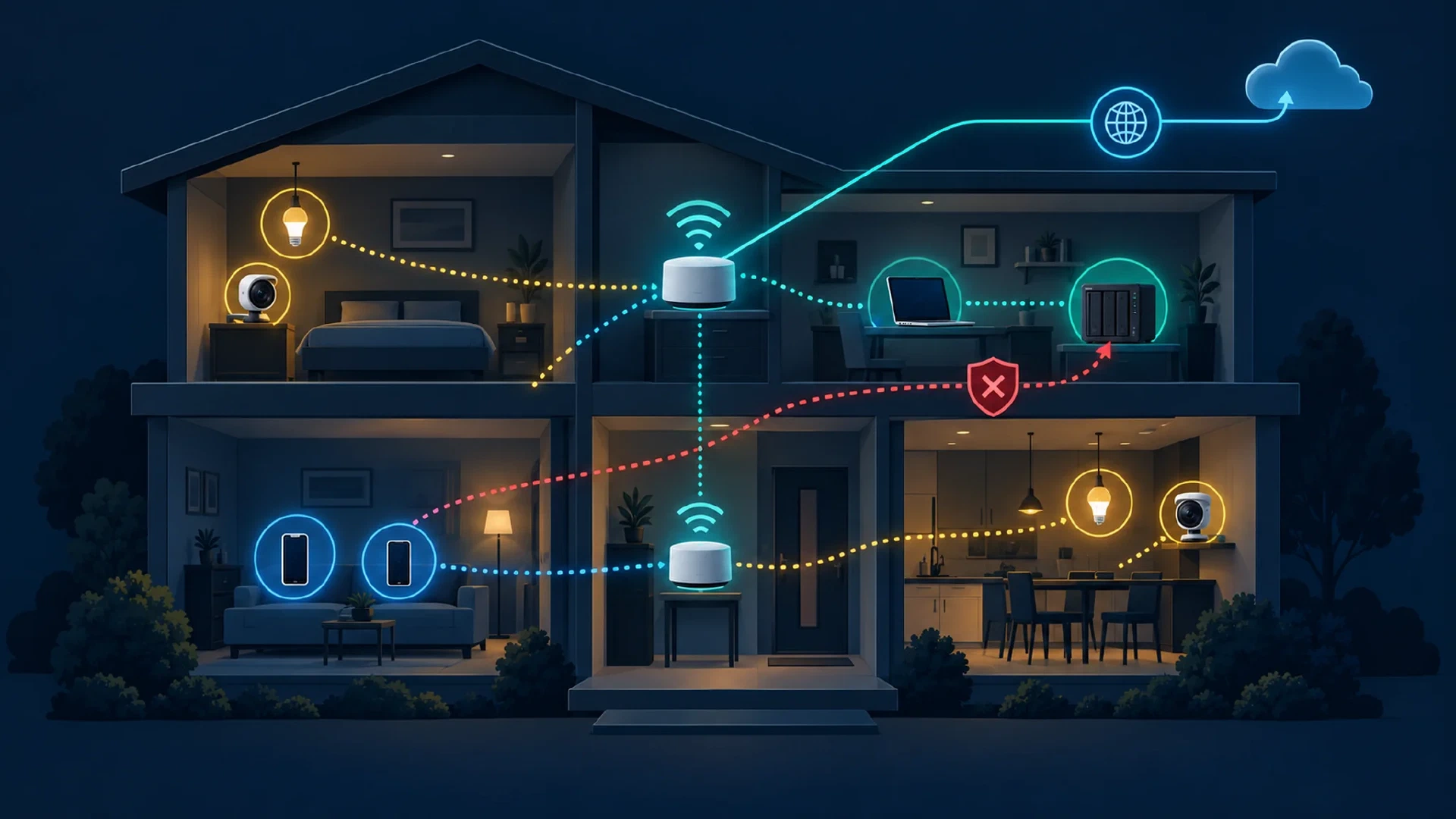
Table of Contents
A separate Wi-Fi name does not reveal which devices communicate with each other. A mesh system might treat its guest network, IoT network, and wireless client isolation as different controls. This guide helps you test the paths on your own equipment without assuming a vendor’s label describes your policy.
Key Takeaways
- Prove the target works first: Reach a known service from your main network before testing a blocked path.
- Test each boundary: Guest-to-main, IoT-to-main, and guest-to-guest access answer different questions.
- Record the setup: Model, firmware, router or access-point mode, and connected mesh node affect interpretation.
- Retest after changes: A clean result applies to the tested devices, service, address family, and configuration.
Before You Begin
Allow about 20 minutes. You need a laptop able to join your main, guest, and IoT Wi-Fi networks. You also need a trusted device on the main network with a known open TCP service, such as a NAS web interface. Use a service you own or administer. Note its local address and port without publishing them. Keep the service running throughout the test.
Write down the mesh model, firmware version, operating mode, and the settings for guest access, IoT access, shared devices, and client isolation. Confirm the laptop’s Wi-Fi name after every switch. Disconnect a VPN or proxy for this local-path test if your normal policy permits the change, then restore the VPN or proxy afterward. A VPN changes the route under test.
Warning: Test only your own devices or devices you have permission to administer. A router’s login page is a poor substitute for a main-network host because gateway access follows separate rules.
Define the Boundary
Choose the result you want before changing a setting. Internet access and local access are separate outcomes.
| Path | Question to answer | Example expected result |
|---|---|---|
| Guest to main LAN | Reachability of a computer or NAS | Blocked, unless you chose an exception |
| IoT to main LAN | Reachability of private devices | Depends on the product and your policy |
| Guest to guest | Reachability between two guests | Depends on client isolation settings |
| Guest to shared device | Use of a printer or display you shared | Allowed only when intended |
| Guest to Internet | Access to an ordinary public site | Allowed if your guest policy includes Internet |
These rows are separate tests. TP-Link’s Deco device isolation guide says isolated devices retain Internet access and communication with other isolated devices, while access to main-network devices is blocked. ASUS’s AP isolation guide describes a wireless peer control and notes a path through an upstream wired router falls outside the control. Do not treat one blocked path as proof of every other boundary.
Check the Mesh Settings
Find the feature controlling the boundary you plan to test. Menu names and availability vary with the model and firmware.
| Mesh setting | What to verify |
|---|---|
| TP-Link Deco guest network | Router mode isolates guest from main . In access-point mode, check the Allow Local Access setting. |
| ASUS guest profile | Access Intranet controls access to the main network on supported profiles. |
| Google Nest guest Wi-Fi | Check the Shared devices list before expecting a printer or display to be hidden. |
| IoT network or device isolation | Check whether the product offers a separate isolation control. An IoT Wi-Fi name alone does not establish the access rule. |
On Deco, device isolation requires support from the main and satellite units. Record which node serves your test laptop. If a feature is absent, check the exact model and firmware documentation instead of assuming an app screen matches another owner’s setup.
Establish a Positive Control
Connect the Windows test laptop to the main Wi-Fi. Confirm the chosen service works from this laptop. If you use PowerShell, enter the main-network host address and its known open port when prompted:
$targetAddress = Read-Host "Main-network test host address"
$targetPort = [int](Read-Host "Known open TCP port")
Test-NetConnection -ComputerName $targetAddress -Port $targetPort
Microsoft’s
Test-NetConnection documentation
defines -ComputerName and -Port as a specific host and TCP service test. Record TcpTestSucceeded. Establish True here before interpreting a later False. A failed main-network test points to the service, address, host firewall, or laptop setup. Fix the main-network test first.
If you use a phone or another operating system, open the same known service in its browser or app. Keep the exact service and target address the same when you switch Wi-Fi networks. A device-discovery list alone is weaker evidence because discovery traffic and direct TCP access follow different paths.
Test Guest and IoT Access
Switch the same laptop to guest Wi-Fi. Confirm the Wi-Fi name. Load a public website if Internet access is part of your guest policy. Rerun the same Test-NetConnection command without changing $targetAddress or $targetPort. Record the result.
Switch back to the main network and confirm the service still returns True. If the main-network test now fails, the guest failure is inconclusive. Then join the IoT Wi-Fi with the same laptop if your system permits a laptop connection and repeat the test. Do not assume the IoT result will match the guest result. A successful IoT-to-main test means the chosen local TCP service was reachable from the IoT network in this configuration.
If you expect guests to be isolated from each other, use two devices you control on the guest network. Test a known service on one device from the other. Record this separately from guest-to-main access. If you expect a shared printer or display to work, test the intended exception as well. Cloud control of a smart device does not prove a direct local path.
Repeat the guest-to-main test near each mesh node. Confirm the serving node in the app when the app reports one. If the main host supports IPv6 and the main-network positive control succeeds over IPv6, repeat the same address-family test from guest and IoT Wi-Fi. An IPv4-only pass does not cover an IPv6 path.
Interpret a Mismatch
| Observation | Next check |
|---|---|
| Main and guest both fail | Check the target service, address, port, and host firewall. Isolation is unproven. |
| Main succeeds, guest succeeds | Check guest local-access settings, shared-device exceptions, and router versus access-point mode. |
| Main succeeds, guest fails | Record evidence for this target and TCP path. Test other paths required by your policy. |
| Guest blocked, IoT succeeds | Check whether the IoT name is a compatibility network without a matching isolation rule. |
| Guest-to-main blocked, guest-to-guest succeeds | Check wireless client isolation separately. |
A failed ping does not settle the TCP question. A host firewall might block ping while accepting the service you chose. A failed TCP test is also narrow: the result says nothing about other ports, devices, IPv6, or shared-device exceptions. Treat a mismatch as a reason to check the configured rule and repeat a controlled test.
Fix and Record the Result
Change one control at a time. On a Deco in access-point mode, inspect Allow Local Access. On an ASUS guest profile, inspect Access Intranet. On Google Nest Wifi, remove an unintended item from Shared devices. If you need local smart-home control, decide which device must reach which service before adding an exception. The site’s VLAN segmentation plan covers a managed network when a consumer mesh lacks the access rule you need.
Record the mesh model, firmware, operating mode, node, SSID, source device, destination service, address family, expected result, actual result, and the single change made. Do not publish private addresses or network passwords. Repeat the same tests after firmware updates, node changes, or a switch between router and access-point modes.
If you are still choosing equipment, compare features in the site’s mesh Wi-Fi buying guide . Then use this procedure to verify the network you install. A label or app toggle is a claim. A positive control and a matched retest give you evidence for the exact path you care about.