
GitHub Copilot CLI vs VS Code: 2026 Workflow Comparison
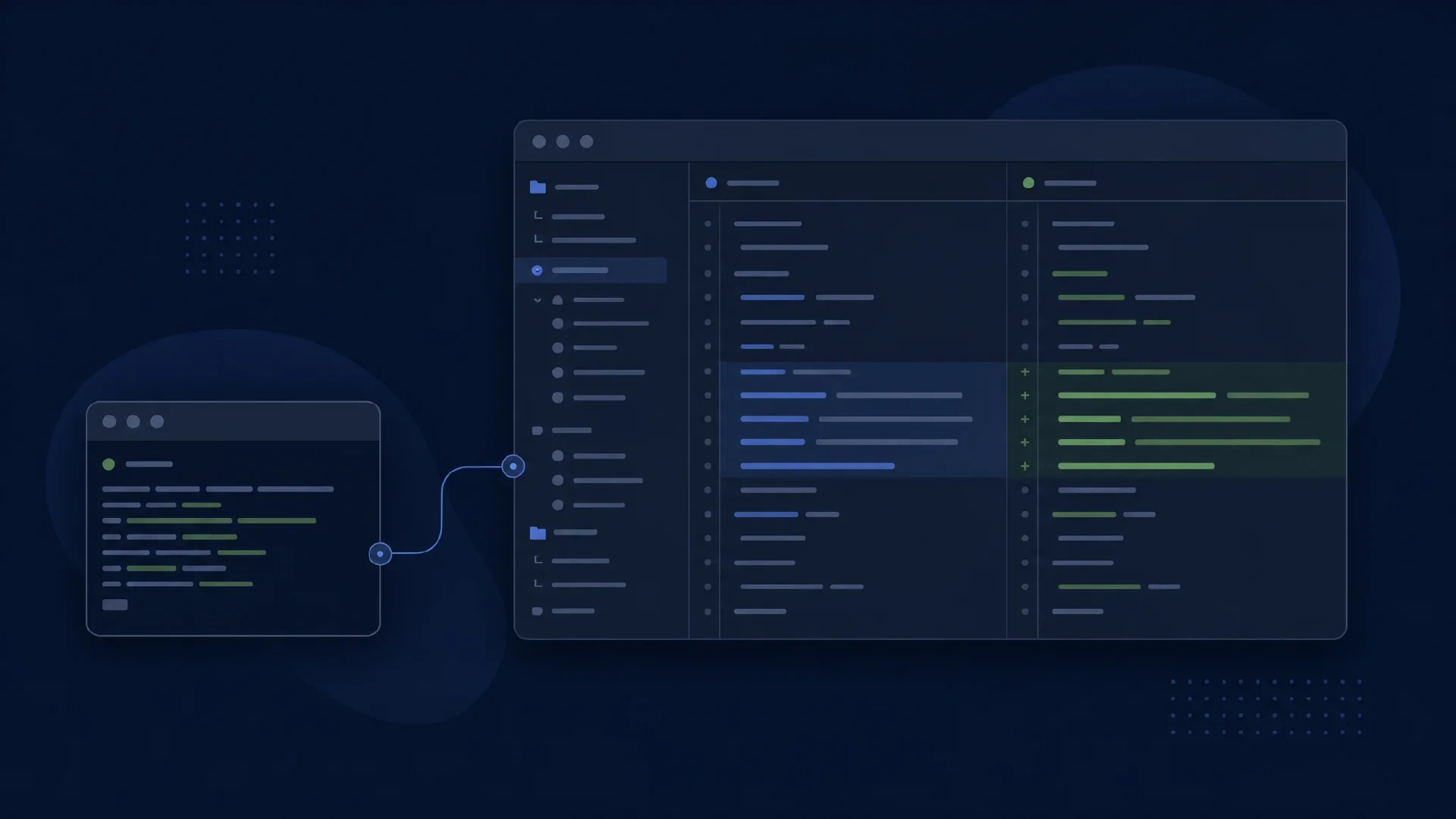
Table of Contents
GitHub Copilot CLI and Copilot in VS Code serve different entry points into coding work. The CLI starts with your shell and a task prompt. VS Code combines editor context, suggestions, chat, and agent workflows. Both deserve evaluation within the same account and repository policy.
The choice is not exclusive. GitHub documents a connection between Copilot CLI and VS Code. A terminal-driven task still benefits from editor selections and visual review when you explicitly connect the two.
Key Takeaways
- Use Copilot CLI for terminal-driven tasks and supported programmatic invocation.
- Use Copilot in VS Code for editor-centered work, including inline assistance and Agent mode.
- Connect the CLI to VS Code when you want terminal prompts with editor context and diffs.
- Account, model, and policy settings require verification, even within one product family.
Scope and date: Official documentation checked on October 6, 2026. This compares the standalone copilot CLI with Copilot in VS Code, not the old gh copilot extension or a cloud agent assigned a GitHub issue. Prerequisites are a testable repository and permitted Copilot access. Allow an hour for a trial.
Three Ways to Work
| Workflow | Main interaction | Good trial task |
|---|---|---|
| Standalone CLI | Terminal prompt and command output | Explain and fix a reproduced test failure |
| VS Code integration | Editor selection, chat, suggestions, and diffs | Modify a selected function and its tests |
| CLI connected to VS Code | Terminal task with editor context and review | Investigate from the shell, inspect the patch visually |
The hybrid remains a CLI session. Running it inside an integrated terminal does not automatically turn it into the editor’s native Agent-mode conversation. Check the active session and connection instead of relying on the window containing the prompt.
What the CLI Provides
copilot
The current standalone command starts the terminal agent. GitHub’s Copilot CLI overview describes interactive and programmatic use. It also documents planning and tool permissions. Evaluate it where terminal output is already the main evidence for a task.
A strong first task has a concrete failure. Supply the failing command, expected behavior, and a restriction against unrelated refactoring. Ask the agent to reproduce the issue before changing files. Review whether its final explanation matches the observed test output.
Automation requires explicit boundaries. Use GitHub’s CLI usage guides for the current invocation and control options. Define allowed tools, time limits, and output handling before running unattended jobs. Avoid converting an interactive permission policy into blanket authorization for a pipeline.
What VS Code Adds
Copilot’s IDE experience includes suggestions, chat, and agentic tasks. The IDE overview separates those functions. Inline assistance fits work where you remain the primary editor. Agent mode fits a bounded outcome requiring changes across files.
Agent mode edits and runs commands iteratively. GitHub’s Agent-mode guide describes selecting Agent in chat, reviewing changes, and extending tools through MCP. Availability and command approval behavior also depend on configuration and administration.
Evaluate context transfer deliberately. Select a function and ask for an explanation of its error handling. Then request a small change with an independent test. Record whether you needed to supply neighboring files or correct the agent’s assumption about the selected code.
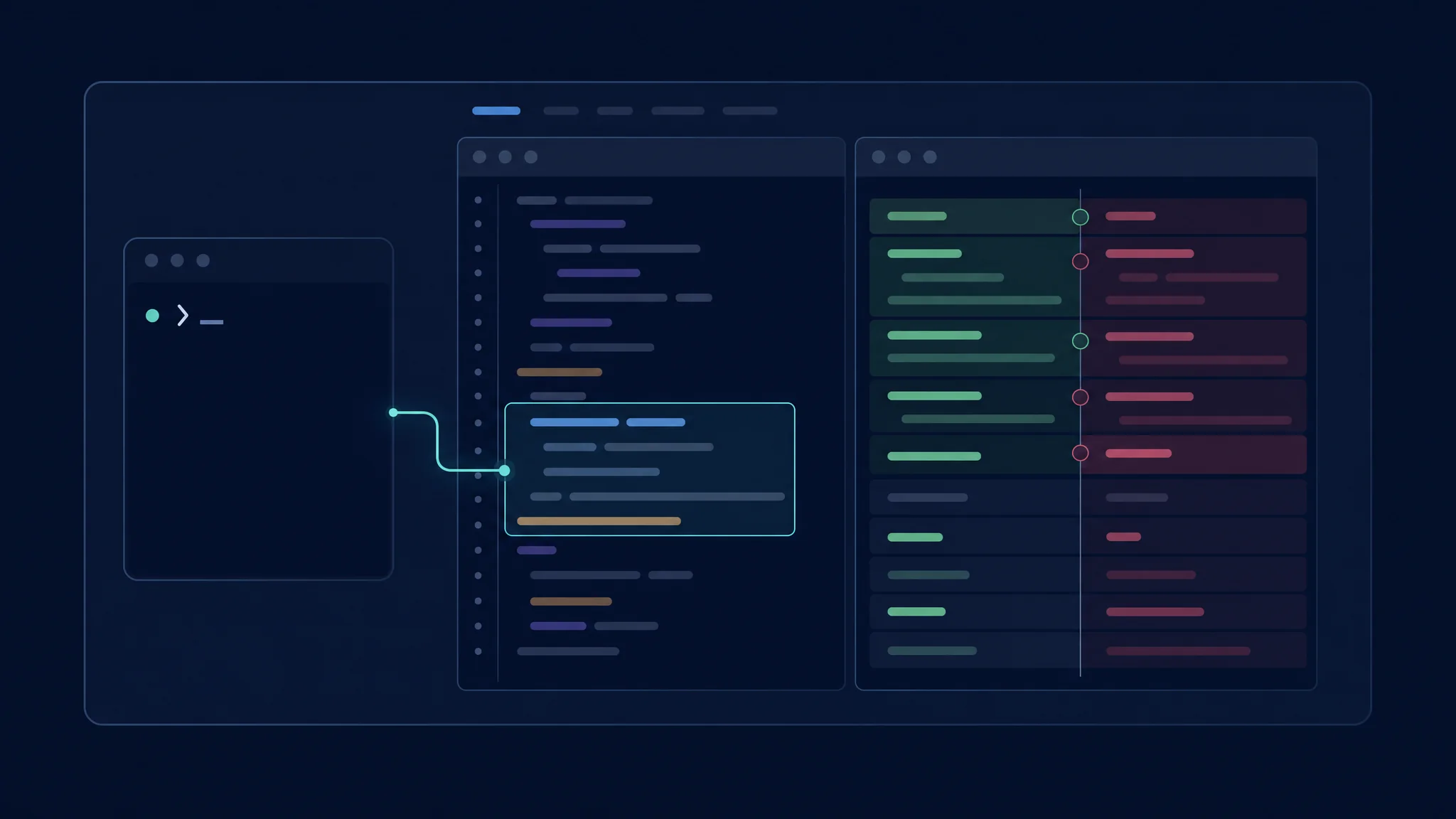
A connected CLI session combines terminal input with editor review
Connect the Two Interfaces
/ide
Use /ide in an interactive Copilot CLI session to inspect or change the VS Code connection. GitHub’s
connection guide
documents matching a trusted workspace, sharing editor selection, and showing proposed file edits as diffs.
Automatic connection depends on the workspace match. A local CLI does not connect to a remote Codespace merely because its repository name matches. Run the CLI in the corresponding environment. Broad edit authorization also bypasses the proposed-edit diff approval flow, so check permissions if expected prompts disappear.
CLI transcripts are visible through VS Code’s Sessions view, with continuation through Resume in Terminal. This preserves the terminal workflow. Do not assume it converts the conversation into an interchangeable native editor-agent session.
| Before connecting | Verify |
|---|---|
| Workspace | Intended folder is open and trusted |
| Execution location | CLI and editor integration refer to the same environment |
| Selection | Highlighted code matches the current request |
| Permissions | Proposed-edit review remains enabled if required |
| Session | Continuing the intended conversation |
Models, Billing, and Policy
Use the same selected model for an interface trial where available. If the model choices differ, record the mismatch. A different model, context selection, or tool set changes the experiment beyond the graphical-versus-terminal distinction.
Verify current usage accounting in your account. GitHub’s Agent-mode documentation refers to AI Credits. Do not apply old premium-request estimates to a current account without checking its billing arrangement. A CLI prompt and an editor task are not automatically equivalent units of work.
Organization access is a prerequisite. If a feature is missing, check policy before reinstalling the extension. Record the approved tools and integrations for both surfaces. A provider login does not automatically grant authority to modify every repository or contact every external service.
Run a Paired Trial
Prepare two copies of the same starting revision. Use matching instructions and acceptance tests. Keep the first attempt in the standalone CLI and the second in VS Code Agent mode. Run a third attempt with the connected CLI only if the mixed interaction suits your normal work.
| Measure | Reason to record it |
|---|---|
| Context supplied | Reveals hidden manual setup effort |
| Correctness | Distinguishes plausible code from a verified fix |
| Approval steps | Shows the supervision burden under matching policy |
| Review time | Measures effort to understand the whole patch |
| Manual repairs | Captures work remaining after the agent finishes |
| Usage | Connects cost with accepted outcomes |
Keep recovery in the test. Reject one proposed approach and explain why. Observe whether the next attempt preserves useful work and respects the correction. This reveals more about daily usability than a single uninterrupted demo.
Troubleshooting and Next Steps
If the CLI connects to the wrong editor window, inspect /ide and select the intended workspace. If visual approval stops appearing, check broad edit permissions. If Agent mode is unavailable, inspect the extension state and organization policy.
Choose the standalone CLI when shell context and repeatable task invocation dominate. Choose VS Code when selection-based context, inline work, and graphical review dominate. Use the connected CLI when terminal task entry and editor inspection work well together.
For cross-vendor choices, read the CLI master comparison or GUI master comparison . Keep those evaluations separate from this same-family interface trial.

Related Posts