
Run Your First Coding Agent Repository Task
Table of Contents
Return to the Practical AI Workflow Course
A coding agent reads files, proposes edits, and runs tools inside a workspace. This lesson uses one small repository task. Choose Codex in the ChatGPT desktop app or CLI, Claude Code CLI, or OpenCode TUI, then inspect a change before accepting it.
Learning outcome: you will run or manually apply one scoped edit and verify its diff and behavior.
Key Takeaways
- Codex in the ChatGPT desktop app gives you a visual task and review workspace.
- Codex CLI runs a Codex session from your terminal.
- Claude Code CLI runs Claude’s coding workflow from your terminal.
- OpenCode TUI offers a terminal coding workflow with configurable providers and permissions.
- A diff and a test result matter more than an assistant’s completion message.
Before You Begin
Prerequisites: finish course setup , including the baseline run and local Git snapshot. Finish repository context and task packets before this lesson. Use one coding agent you are authorized to access. Set aside 45 minutes. Difficulty is beginner to intermediate.
Use the
course starter lab
in a disposable folder. The archive contains a tiny task report program, sample data, and tests. Do not use a production repository for your first edit. Your task is to add a --status filter while preserving the existing total count.
Study Route Without a Coding Agent
Use a chat assistant to propose the same change if a coding agent is unavailable. Paste only docs/requirements.md, task_report.py, and the focused test file from the synthetic lab. Ask for a unified diff and a short explanation. A unified diff shows old lines with - and new lines with +. Open the named file in a text editor, replace the old lines with the proposed new lines, and save. Then run every command under Review the Result. Keep tasks.json unchanged. Record the coding-agent step as not run. The capstone has a separate JSON feature, so compare your filter solution with the lesson 5 requirement and checks.
Pick an Interface
Choose a review surface first. Codex in the ChatGPT desktop app suits a visual project and diff review. A terminal interface suits work from the extracted lab folder. Compare terminal choices with terminal choices:
| Terminal tool | Account or provider check | Starting command |
|---|---|---|
| Codex CLI | Confirm Codex sign-in and local permissions | codex |
| Claude Code CLI | Confirm Claude Code access and local permissions | claude |
| OpenCode TUI | Configure a supported model provider and permissions | opencode |
Install and sign in through the current official guide for your chosen tool. Read Codex CLI , ChatGPT desktop app , Claude Code , or OpenCode . Commands, supported platforms, and account requirements change. This lesson uses only the stable launch names and a common review procedure.
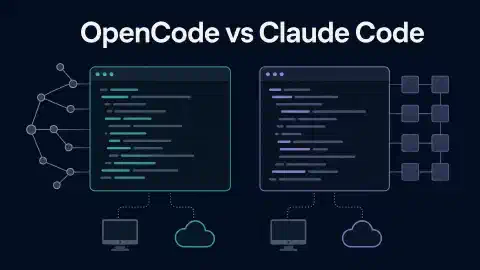
For a deeper product choice, read the site’s CLI coding agent comparison or GUI coding agent comparison . The Codex CLI and desktop , Claude Code CLI and desktop , and OpenCode CLI and desktop guides compare each product’s interfaces.
Start in the lab folder. Each interface needs an explicit workspace choice:
- Codex desktop: open the ChatGPT desktop app, select the extracted lab as a local project, then start a local task in that project. Inspect the folder path and approval prompts before an edit. A hosted task uses a separate workspace copy.
- Codex CLI: run
cd /path/to/effective-ai-course-lab, thencodex. Confirm the displayed working folder and read the approval mode. - Claude Code CLI: run the same
cdcommand, thenclaude. Confirm the project folder and tool permissions. - OpenCode TUI: run the same
cdcommand, thenopencode. Confirm the selected provider, project, and permission settings.
ChatGPT chat and Claude Projects handle conversations and shared reference files. Codex and Claude Code operate on a code workspace with file and command tools. OpenCode also offers desktop and IDE surfaces, but this lesson uses its terminal interface. Provider, account, and local or hosted execution differ, so record the selected surface rather than treating all sessions as the same run.
Check five details before opening the lab: supported operating system, authentication, provider or account cost, file and command permissions, and whether execution occurs locally or on a remote host. Record your choice. Do not assume a desktop app and a terminal tool use identical workspaces.
Inspect the Starter
Reopen the clean lab folder from the repository-context lesson. This copy has your committed AGENTS.md and optional CLAUDE.md guidance. Review the files before asking an agent to edit them. Run the baseline tests from this folder.
python3 -m unittest discover -s tests -v
python3 task_report.py tasks.json
Expected baseline: the report prints Total tasks: 4. The test run names two tests and ends with OK. If either fails, stop and inspect the extracted files. Do not credit the agent with a fix for a broken starting point.
Use the local Git snapshots from course setup and the repository-context lesson. AGENTS.md and optional CLAUDE.md should already be committed by you. Run git status --short before the feature edit and expect no files. The agent still must not commit. The archive contains no Git history. Its .gitignore excludes Python bytecode generated by the test run. If you extracted a new copy, repeat course setup and the repository-context lesson in the new folder. Create and commit the guidance files before the feature edit. First initialize and commit the starter:
git init
git add .
git commit -m "Baseline course lab"
Then add AGENTS.md and optional CLAUDE.md with the approved source and test command from the repository-context lesson. Commit those files yourself, confirm a clean git status --short, and begin the feature edit. These commands change only your extracted practice folder. Run them there, not at the root of another repository.
Give One Bounded Request
Open the lab folder in your chosen coding agent. Send this task packet:
Add an optional --status argument to task_report.py.
Allowed values: open and done.
When absent, keep the current total-count output unchanged.
When present, count only matching tasks and print Total tasks: N.
Add tests for both values, an invalid value, and unchanged default output.
Do not change tasks.json or unrelated files.
Run the tests and report the exact command and result.
Stop after the code and tests. Do not commit or push.
On Windows, replace python3 with the py -3 command verified during setup, including in the saved repository guidance and test packet.
Ask for a short plan before editing if you do not know the code yet. Give the agent permission to edit only the disposable lab folder. Permission controls vary among tools, so inspect the tool’s current settings before allowing shell commands or file writes.
Review the Result
Read the diff. Check whether the original unfiltered output stays unchanged, the filter accepts only two values, and tests cover the error case and unchanged default command output. A green test result supports the change only when the test checks the requested behavior.
git status --short
git diff -- task_report.py tests
python3 -m unittest discover -s tests -v
python3 task_report.py tasks.json
python3 task_report.py tasks.json --status open
python3 task_report.py tasks.json --status done
python3 task_report.py tasks.json --status invalid
Expected results: the first three report commands print counts of 4, 2, and 2. The invalid value prints a clear error and exits with a nonzero status. The exact error wording depends on the implementation. On macOS or Linux, run echo $? immediately after the invalid command to read its exit code. In PowerShell, inspect $LASTEXITCODE.
| Evidence | What to inspect |
|---|---|
| File list | Only the program and tests changed |
| Diff | Filter logic matches the request |
| Test output | New cases ran and passed |
| Manual run | Both open and done counts match tasks.json |
If your agent reports a result without a test run, run the command yourself. If the edit reaches outside the task packet, ask for a scoped correction. If the state is unclear, delete the extracted practice copy and extract the original ZIP again.
Study Route Answer Key
Use these complete files if your manual patch fails. Start from a fresh extracted lab, save the first block as task_report.py and the second as tests/test_task_report.py, then run the Review the Result commands. Keep tasks.json and docs/requirements.md unchanged. Record the original failure before copying the files.
task_report.py:
"""Print a count of tasks from a JSON file."""

import argparse
import json
import sys
from pathlib import Path


def count_tasks(path: Path, status: str | None = None) -> int:
    """Count all tasks or tasks with one approved status."""
    tasks = json.loads(path.read_text(encoding="utf-8"))
    if not isinstance(tasks, list):
        raise ValueError("task data must be a list")
    if status not in (None, "open", "done"):
        raise ValueError("status must be open or done")
    if status is None:
        return len(tasks)
    return sum(1 for task in tasks if task["status"] == status)


def main() -> int:
    parser = argparse.ArgumentParser(description="Count workshop tasks")
    parser.add_argument("path", type=Path, help="path to the JSON task list")
    parser.add_argument("--status", choices=("open", "done"))
    args = parser.parse_args()
    try:
        total = count_tasks(args.path, args.status)
    except (OSError, ValueError, KeyError) as exc:
        print(f"Error: {exc}", file=sys.stderr)
        return 1
    print(f"Total tasks: {total}")
    return 0


if __name__ == "__main__":
    raise SystemExit(main())
tests/test_task_report.py:
"""Checks for the workshop task report."""

import json
import subprocess
import sys
import tempfile
import unittest
from pathlib import Path
from sys import path as module_path

ROOT = Path(__file__).resolve().parents[1]
module_path.insert(0, str(ROOT))
from task_report import count_tasks  # noqa: E402


class TaskReportTests(unittest.TestCase):
    def test_counts_four_sample_tasks(self):
        self.assertEqual(count_tasks(ROOT / "tasks.json"), 4)

    def test_rejects_non_list_data(self):
        with tempfile.TemporaryDirectory() as directory:
            sample = Path(directory) / "invalid.json"
            sample.write_text(json.dumps({"tasks": []}), encoding="utf-8")
            with self.assertRaises(ValueError):
                count_tasks(sample)

    def test_counts_each_approved_status(self):
        sample = ROOT / "tasks.json"
        self.assertEqual(count_tasks(sample, "open"), 2)
        self.assertEqual(count_tasks(sample, "done"), 2)

    def test_rejects_invalid_status_in_function(self):
        with self.assertRaises(ValueError):
            count_tasks(ROOT / "tasks.json", "pending")

    def test_default_command_stays_unchanged(self):
        result = subprocess.run(
            [sys.executable, str(ROOT / "task_report.py"), str(ROOT / "tasks.json")],
            capture_output=True, text=True, check=False,
        )
        self.assertEqual(result.returncode, 0)
        self.assertEqual(result.stdout.strip(), "Total tasks: 4")

    def test_invalid_command_exits_nonzero(self):
        result = subprocess.run(
            [sys.executable, str(ROOT / "task_report.py"), str(ROOT / "tasks.json"),
             "--status", "invalid"],
            capture_output=True, text=True, check=False,
        )
        self.assertNotEqual(result.returncode, 0)
        self.assertIn("invalid", result.stderr)


if __name__ == "__main__":
    unittest.main()
Keep a successful edited copy through the context and output-verification lessons. If you used this answer key as a recovery path, keep the fresh copy with its passing filter tests for those lessons. Save the diff and test record outside the lab. Reset to the starter before the delegation lesson, or discard a failed disposable attempt when you need a clean retry.
Practice and Check
Your artifact: a lab diff and a four-row review record covering file scope, default behavior, filtered behavior, and invalid input. Keep the tool name and version in your private notes for reproducing a version-specific issue.
Expected reasoning: you chose an interface suited to your working style, gave a bounded task, inspected the actual edit, and ran a check independent of the agent’s summary.
Check Your Understanding
Question: What proves the status-filter edit worked? Answer: A scoped diff plus passing tests and observed default, open, done, and invalid results.
Question: Does a coding agent saying it ran tests count as your test result? Answer: No. Run or inspect the test output yourself.
Troubleshooting
- Command missing: finish installation from the linked vendor guide, then reopen the terminal.
- No file access: open the extracted lab folder, then inspect workspace permissions.
- Unexpected files changed: stop and inspect
git status --shortbefore another request. - Passing tests with wrong behavior: add a manual case or a test for the missing requirement.
Next Steps
Continue with Context Windows and Handoffs . You will keep a useful record for a fresh session.
Course navigation: Previous: Task Packets , Course outline .

Related Posts