

Why DNS Filtering Is Bypassed: Test the Resolver Path
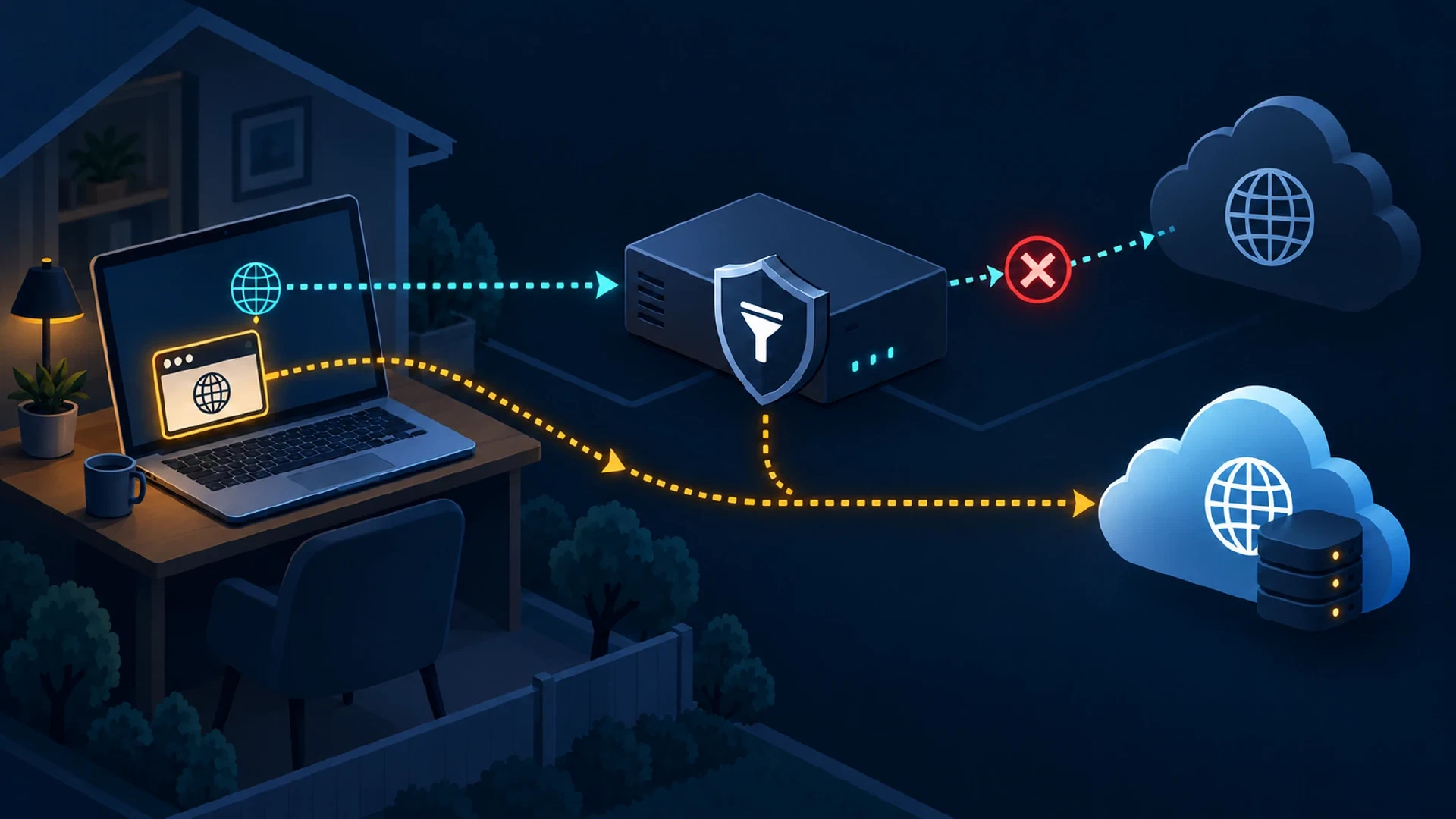
Table of Contents
You configured a filtering resolver, yet one device still reaches a domain your policy blocks. The cause might be the rule, the device’s DNS assignment, a browser’s encrypted resolver, or a VPN. Test the path before changing settings. A direct query to the filter and an ordinary device query answer different questions.
Key Takeaways
- Check the rule first: Confirm the filter receives and blocks a safe test domain.
- Trace each layer: Router, operating system, browser, VPN, and mobile settings each influence DNS routing.
- Use fresh queries: Match a new hostname and timestamp with the filter’s query log.
- State the limit: One observed query proves one path, not every app or device.
Before You Begin
Allow about 20 minutes. You need access to the filtering resolver’s query log, one device with the problem, and a record of the router’s DNS settings. Examples use a Windows laptop and Pi-hole, but the same comparison works with a resolver offering per-client query logs. Identify the exact filter address before starting. Do not paste private client addresses, query logs, or policy rules into a public report.
Choose a harmless test domain already blocked by your policy. Another option is a temporary exact deny rule for a domain you control in a test profile. Record the rule and remove the rule after testing. Do not use a live malware domain as a probe. A blocked page is a useful symptom, but the resolver log supplies the stronger path evidence.
| Layer | Question |
|---|---|
| Filter | Does a direct query reach the intended resolver and match the rule? |
| Device | Which DNS servers does the network assign? |
| Browser or app | Does this client use the device resolver or a separate path? |
| VPN or relay | Does an active tunnel change where queries go? |
Prove the Filter Works
Open your resolver’s query log. Query the chosen blocked domain directly against the filter. On Windows, use PowerShell and enter the filter address and test domain when prompted:
$filterAddress = Read-Host "Filtering DNS server address"
$testDomain = Read-Host "Harmless domain blocked by your test rule"
Resolve-DnsName -Name $testDomain -Server $filterAddress -Type A -DnsOnly
Microsoft’s
Resolve-DnsName reference
defines -Server as a query to the named resolver. Find the query in the filter log and check the response and matching rule. Pi-hole’s
query and logging documentation
describes its local query tools. If the direct query is allowed, fix the rule or client group assignment before investigating bypass. If the direct query fails to reach the filter, check the address, service, and network path.
This direct test does not prove the laptop normally uses the filter. The -Server option overrides its default resolver for this query. This distinction prevents a common false pass.
Trace the Device Path
Use a fresh hostname to avoid a prior DNS cache entry. The following example sends one query directly to the filter and another through the laptop’s normal resolver selection. The names are separate so you know which log entry belongs to each path. An NXDOMAIN response is normal if the random name does not exist. The query’s presence in the filter log matters here.
$stamp = [guid]::NewGuid().ToString("N")
Resolve-DnsName -Name "direct-${stamp}.example.com" -Server $filterAddress -Type A -DnsOnly -ErrorAction SilentlyContinue
Resolve-DnsName -Name "default-${stamp}.example.com" -Type A -DnsOnly -ErrorAction SilentlyContinue
Search the filter’s log for both exact names and note the time and reported client. If direct- appears but default- does not, inspect the laptop’s assigned DNS servers. On Windows, Get-DnsClientServerAddress shows DNS server addresses by interface. Check the active Wi-Fi or Ethernet adapter, not a disconnected adapter.
Microsoft’s DNS client reference
defines this read-only command.
Get-DnsClientServerAddress | Select-Object InterfaceAlias, AddressFamily, ServerAddresses
Compare IPv4 and IPv6 rows. An IPv4 lease might name the filter while IPv6 router advertisements supply another DNS server. Check the router’s DHCP and IPv6 DNS advertisements, then renew the device’s network lease after a correction. Pi-hole’s post-install guide explains how DHCP points clients at Pi-hole. Its router example covers IPv6 DNS advertisements.
If the log shows the router as the client, the router might be forwarding queries on behalf of devices. The filter log then proves the router reached the filter, not which device originated each query. Confirm the router’s forwarding design before treating client identity as missing data.
Check Browser DNS
A command-line query tests the device resolver path. A browser might use DNS over HTTPS (DoH) instead. Open the same blocked test domain in the browser and watch the filter log for a corresponding query. Clear the browser’s DNS cache or use a new hostname under a test rule when cached results obscure the comparison.
In Chrome on a computer, open Settings > Privacy and security > Security > Use secure DNS. Google’s Chrome help says automatic mode uses the current provider and falls back to unencrypted lookup on failure. A selected custom provider does not fall back in the same way. Record the selected mode and provider before changing the setting.
In Firefox, open Settings > Privacy & Security > DNS over HTTPS. Mozilla’s protection-level guide distinguishes Default, Increased, Max, Custom, and Off modes. Its DoH overview explains when a browser resolver bypasses a local DNS filter. Test again after one controlled settings change, then restore your intended privacy setting.
Do not label every missing browser query a bypass. The browser might reuse cached data, reach an already known address, or use a proxy. Compare a fresh name, a matching time window, and the browser’s resolver setting before concluding where the query went.
Check Mobile and VPN Paths
On Android, inspect Settings > Network & internet > Private DNS. A provider hostname selects a private DNS service distinct from the DNS advertised by your router. Google’s Android network settings explain the Off, Automatic, and provider-hostname choices. Test on Wi-Fi with cellular data disabled for a controlled local result, then restore your normal setting.
On Apple devices, check whether iCloud Private Relay is active for the network and whether Safari uses the path you expect. Apple says Private Relay protects Safari browsing and DNS information . Its network controls describe per-network handling when filtering conflicts with Private Relay. Do not generalize a Safari result to every app on the device.
A VPN might supply its own DNS resolver or send queries through the tunnel. Record whether the VPN is connected, its DNS settings, and its split-tunnel policy. Compare the same test with the VPN on and off only if your security policy permits the comparison. A changed result identifies a path difference. The changed result alone does not prove a leak or a filter defect.
Interpret the Results
| Evidence | Likely next check |
|---|---|
| Direct query absent from filter log | Filter address, DNS service, logging, or network reachability |
| Direct query allowed | Exact deny rule, group policy, or rule priority |
| Direct logged, default absent | DHCP, static device DNS, IPv6 DNS, or VPN resolver |
| Default logged, browser absent | Browser DoH, browser cache, proxy, or relay |
| Both logged and blocked, site still loads | Another hostname, cached content, direct address, or app path |
Missing log entries are ambiguous when logging is disabled, the router forwards on behalf of the client, or the test reused cached data. Repeat with a fresh hostname and inspect the query time before changing firewall rules. Blocking plain DNS to outside resolvers does not force an encrypted browser or VPN to use your filter. Pi-hole’s OPNsense guide presents external-DNS blocking as an optional network control. Device policy and browser configuration remain separate controls.
Fix and Retest
Change one layer at a time. Correct DHCP or IPv6 DNS advertisements, remove an unintended static resolver, select the intended browser DNS provider, or adjust the VPN’s DNS policy. Do not silently weaken encrypted DNS or relay protections across every device to solve one test failure. Record the source device, interface, filter address, queried name, time, response, log client, browser mode, VPN state, and change made.
Rerun the direct, default, and browser tests after each change. Keep a fresh hostname for each run. If a device has several network profiles, test each profile separately. The site’s DNS resolver comparison helps choose a service. The browser leak test addresses a different question: which network information leaves your browser and VPN setup. A reliable filter result needs a verified rule and a verified client path.

Related Posts