
Claude Cowork and Claude Code With Local Models: 2026 Setup Guide
Table of Contents
Claude’s agentic tools now run against models on your own hardware, with no API key, no subscription, and no data leaving the machine. Ollama exposes an Anthropic-compatible API, and both Claude Code and Claude Desktop connect to it in a few commands.
Most guides get one important detail wrong. They describe Claude Cowork, then hand you setup steps which configure the command-line tool instead. Those are two different integrations, and only one of them gives you Cowork.
This guide covers both paths separately, the environment variable the popular tutorials skip, which models to pair with each in September 2026, and the features which stay cloud-only no matter what you configure.
Reader outcome: identify the integration you need, connect it through the documented Ollama path, and prove the endpoint with one tool-calling test. Local inference keeps model requests local only when you select a local model and avoid cloud-backed features.
The Short Answer
Ollama connects to Claude in two distinct ways, and picking the wrong one is the most common reason people finish a setup guide with a working terminal and no Cowork.
| Integration | What You Get | Setup Path | Platform |
|---|---|---|---|
| Claude Desktop | Cowork, subagents, web search, auto mode | Ollama app, then Apps and Connect Claude | macOS only |
| Claude Code | The CLI coding agent with tool calling and file edits | ollama launch claude, or environment variables | macOS, Linux, Windows |
If you want Cowork, use the Claude Desktop integration. It is a graphical flow in the Ollama app, and it is macOS-only while Windows support is still listed as coming soon.
If you want an agent in your terminal, use Claude Code. One command does it.
Both are free. The only cost is the hardware and the electricity.
Two Integrations, Not One
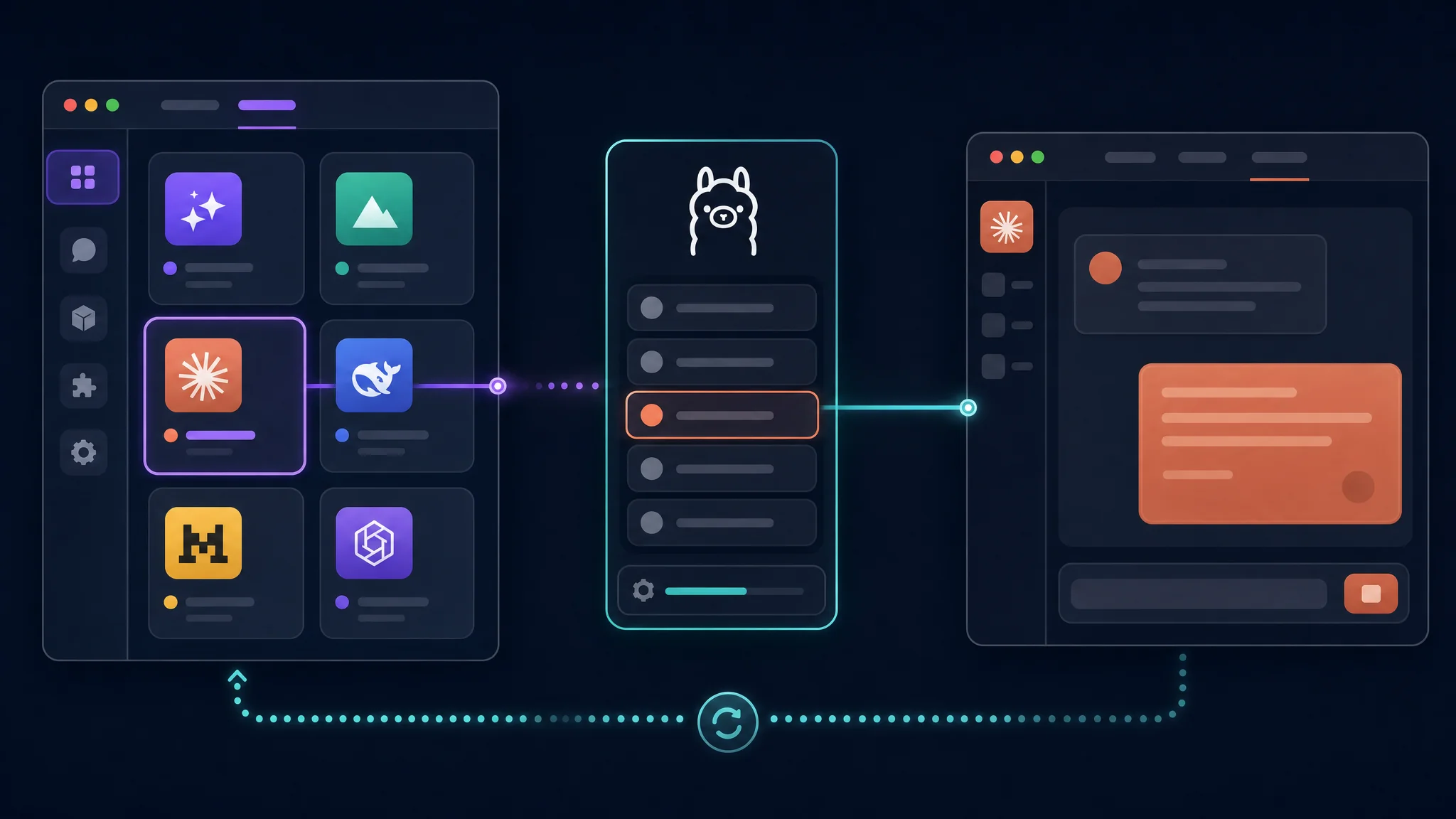
The confusion starts with the naming. Claude Cowork is a feature inside Claude Desktop, not a separate application, and not a synonym for Claude Code.
Ollama’s documentation lists them on separate pages under separate headings. Claude Desktop sits under Assistants, alongside OpenClaw and Hermes. Claude Code sits under Coding, alongside OpenCode, Cline, and Codex CLI.
The distinction matters because the setup differs completely:
- Claude Desktop is configured through the Ollama application interface. You do not touch a shell profile.
- Claude Code is configured through environment variables or a single launch command.
A guide which tells you to export ANTHROPIC_BASE_URL and run claude has configured the command-line tool. If you followed those steps expecting the Cowork desktop experience, nothing in your setup is broken. You configured a different product.
Setup: Claude Desktop and Cowork
This path runs through the Ollama application rather than the terminal.
Prerequisites
- Ollama installed, on macOS. Windows support is documented as coming soon.
- A model downloaded first if you plan to run locally. For a cloud model, sign in to Ollama and enable cloud models. Some cloud models require a paid plan.
- Claude installed. If it is missing, Ollama offers to download it during setup.
The Steps
- Open Ollama and select Apps.
- Select Connect Claude.
- Follow the setup prompts. Install Claude if prompted, and restart it when asked.
This is the whole flow. To change models afterward, open Ollama Settings, go to Apps, choose your models, and select Restart Claude.
What Carries Over
Ollama’s documentation lists four features as supported through this integration:
- Cowork, for completing difficult tasks
- Subagents, for splitting larger tasks across agents
- Web search, provided by default through Ollama’s search
- Auto mode, which lets the agent decide when to ask before making changes
Cowork appears in this list, which is the part worth noting. It is available through this integration and not through the command-line one.
Disconnecting
Disconnecting restores Claude’s previous configuration, so the change is not destructive.
- Through the interface, open Apps and disconnect Claude, then restart Claude when prompted.
- From a terminal, run
ollama launch claude-desktop --restore. - Quitting Ollama while Claude is connected also restores Claude’s usual configuration. If you want the local setup to persist, leave Ollama running.
Setup: Claude Code From the CLI
This is the path covered by almost every guide, and for terminal work it is the right one.
The One-Command Method
ollama launch claude
The command sets the required environment variables, points Claude Code at your local Ollama instance, and starts it. Choose a model from the list and press Enter. To name the model up front, add the flag:
ollama launch claude --model qwen3.5
The wrapper handles the environment for you. Read the next section anyway, because knowing what it sets is how you debug it later.
The Manual Environment Variables
export ANTHROPIC_AUTH_TOKEN=ollama
export ANTHROPIC_API_KEY=""
export ANTHROPIC_BASE_URL=http://localhost:11434

claude --model qwen3.5
The second line is the one popular guides omit. Setting ANTHROPIC_API_KEY to an empty string prevents an existing real key in your environment from interfering with the local connection. If you publish a guide with the variables printed on a page and leave the line out, readers with a key already exported get a confusing failure.
To avoid modifying your shell profile, pass everything inline:
ANTHROPIC_AUTH_TOKEN=ollama ANTHROPIC_BASE_URL=http://localhost:11434 ANTHROPIC_API_KEY="" claude --model kimi-k2.7-code:cloud
Two details worth knowing from the official documentation:
ANTHROPIC_AUTH_TOKENcarries the bearer authentication, which is why it holds the literal stringollamain local mode.- Claude’s own settings files override shell variables. If a connection behaves oddly after you export new values, check those settings and then run
/statusinside Claude Code to see which endpoint is in use.
Connecting Straight to Ollama Cloud
You do not need Ollama installed at all for this route. Set an API key and point Claude Code at Ollama’s hosted endpoint:
ANTHROPIC_BASE_URL=https://ollama.com \
ANTHROPIC_AUTH_TOKEN="$OLLAMA_API_KEY" \
ANTHROPIC_API_KEY="" \
claude --model glm-5.3-flash
One caveat applies here. Ollama’s documentation notes hosted web search and advanced tool controls are not fully supported on this route. Basic chat, file edits, and tool calling work with compatible models.
Model Choices for September 2026
The model lineup moved a long way during 2026, so advice written in the spring is worth rechecking. Here is where things stand now.
| Model | Type | Context | Why Pick It |
|---|---|---|---|
| Qwen3.8 27B | Local, 18 GB | 256K | Current best local all-rounder with vision, tool calling, and thinking control |
| Qwen3 Coder Next | Local, MoE 80B total / 3B active | 256K | Built for always-on coding agents, non-thinking mode for speed |
| Qwen3.6 35B A3B | Local, MoE 35B / 3B active | 262K | Apache 2.0 and efficient on modest memory |
| kimi-k2.7-code:cloud | Cloud | Large | Coding-focused cloud model with no local hardware requirement |
| glm-5.3-flash | Cloud | Large | The model Ollama’s own documentation reaches for first |
Start with Qwen3.8 27B if you have the memory. It runs locally with a 256K context window, native vision, tool calling, and thinking you toggle per request. On a card with 24 GB or more it is a comfortable daily driver.
Start with a cloud model if you do not. Pointing Claude Code at a hosted model costs nothing to try and removes the hardware question entirely, at the price of your code leaving the machine.
A Warning About Ternary Models
If you read our local AI 2026 guide , you know ternary Bonsai 2 27B runs a full 27B model in 5.53 GiB. It is tempting to reach for it here.
It will not work with this workflow. The ternary kernels live in Prism ML’s llama.cpp fork, and stock Ollama cannot load those files. A command like ollama launch claude --model Ternary-Bonsai-2-27B fails before inference starts. Use the standard Qwen3.8 27B pack for Claude Code, and reserve the ternary packs for a runtime built to handle them.
Convenience and maximum efficiency pull in different directions here. The integrated tooling wants a standard GGUF.
Set a 64K Context Before Blaming the Model
Ollama’s documentation gives one direct instruction for repository work: choose a model and set a 64k or larger context window, raising it further for larger repositories.
The reason is mechanical. Claude Code pulls file contents, diffs, and command output into the context window. A model left at a small default runs out of room partway through a task, and the failure looks like a reasoning problem rather than a settings problem.
| Context | What It Handles |
|---|---|
| Under 32K | Single-file edits and quick questions |
| 64K | Multi-file work in a modest repository |
| 128K | Larger repositories and long command output |
| 256K | The full window on Qwen3.8 27B |
If Claude Code loses the thread halfway through a task, check the context setting before you swap models.
Verify Tool Calling in One Command
Tool calling is the difference between an agent and a text generator, and it is worth confirming rather than assuming.
Once Claude Code is running, ask it:
Read the current directory and list all files
If it lists real files, tool calling works. If it replies it would read the directory and describes what it expects to find, tool calling is not wired up. You are talking to a chat model with a coding prompt attached, and no amount of prompting fixes it.
Work through the fixes in this order:
- Switch to a model with confirmed tool support. Not every model implements it, and the difference is not visible from the parameter count.
- Confirm the environment points at Ollama. Run
ollama --versionand checkANTHROPIC_BASE_URLis set to your local endpoint. - Run
/statusinside Claude Code. Any base URL or credential in Claude’s own settings overrides the shell variables you recently exported.
What Stays Cloud-Only
Know the boundary before rebuilding a workflow around local inference.
| Feature | With Local Models | Cloud |
|---|---|---|
| Chat and file edits | Yes | Yes |
| Tool calling | Model-dependent | Yes |
| Subagents | Yes | Yes |
| Web search | Provided through Ollama | Yes |
| Cowork | Through the Claude Desktop integration | Yes |
| Auto mode | Through the Claude Desktop integration | Yes |
| Scheduled prompts | Through /loop in Claude Code | Yes |
Three caveats on the local side:
- Multi-file reasoning degrades before speed does. A local model handles one file well, three files acceptably, and a whole repository poorly. Plan the task size around it.
- Some cloud models require a paid Ollama plan, and cloud models need you signed in with them enabled.
- The cloud-direct route has feature limits. Hosted web search and advanced tool controls are not fully supported when you skip the local installation.
Local inference is excellent at bounded, verifiable work and worse at sprawling, ambiguous work. This is a useful line to organize around.
Automate It
Two features make this more than an interactive toy.
Headless Runs for Scripts and CI
The --yes flag skips the interactive selectors and pulls the model when needed. It requires --model, and anything after -- goes straight to Claude Code:
ollama launch claude --model gemma4:cloud --yes -- -p "how does this repository work?"
Watch the permission model here. Claude Code prompts before most actions, so a headless run either needs configured permission rules or an isolated environment. Do not point an unsupervised agent at a repository you care about.
Scheduled Prompts With /loop
Inside a Claude Code session, /loop runs a prompt or slash command on an interval:
/loop 30m Check my open PRs and summarize their status
/loop 1h Research the latest AI news and summarize key developments
/loop 15m Check for new GitHub issues and triage by priority
This runs while the session is open. It is not a background daemon, so it ends when the session does.
Troubleshooting
| Symptom | Likely Cause | Fix |
|---|---|---|
| Connection refused | Ollama is not running | Run ollama serve, and confirm with curl http://localhost:11434/api/tags |
| Describes actions instead of performing them | The selected model lacks tool calling | Switch to a model with confirmed tool support |
| A real API key gets used instead of the local endpoint | ANTHROPIC_API_KEY is still exported | Set it to an empty string, as shown above |
| Cowork is missing after setup | The Claude Code CLI was configured instead of Claude Desktop | Use the Ollama Apps flow for Cowork |
| Generation is slow | Context set too high, or a dense model where a sparse one fits | Lower the context, then try a mixture-of-experts model |
| Exported variables have no effect | Claude’s settings files override shell variables | Check the settings files, then run /status |
| Background requests fail | Claude Code reaches for a small model for internal tasks | Point the small-model override at the same local model |
Two of these seven come down to the same thing. Most setup problems are a wrong endpoint or a model without tool calling.
Key Takeaways
- Claude Desktop and Claude Code are separate integrations. Cowork lives in Claude Desktop and is configured through the Ollama Apps panel on macOS. The CLI path does not give you Cowork.
- One command starts the CLI route:
ollama launch claude. The manual equivalent needs three variables, andANTHROPIC_API_KEY=""is the one most guides leave out. - You do not need a local install at all. Point Claude Code at
https://ollama.comwith an API key. - Set a 64K or larger context before judging a model. A small window mimics a reasoning failure.
- Verify tool calling with one request. If the model describes what it would do, you have a text generator rather than an agent.
- Ternary Bonsai packs do not work here. They need Prism ML’s llama.cpp fork, and stock Ollama cannot load them.
- Disconnecting is safe. Quitting Ollama restores Claude’s previous configuration, and
ollama launch claude-desktop --restoredoes it from the terminal.
Next Steps
- Install Ollama and pull a model with confirmed tool support before touching Claude: Ollama model library
- Read Ollama’s own Claude Code page for the current flags and model list: Claude Code integration
- Use the Claude Desktop page if Cowork is what you want: Claude Desktop integration
- Size the hardware before you commit, using the memory tiers in our local inference guide: Local AI in 2026: A 27B Model Beats Sonnet 4.6
- Check what smaller hardware handles if you want an always-on agent on a low-power box: Which AI Models Can Run on a Raspberry Pi 4 or 5?
Related Articles
| Article | What It Covers |
|---|---|
| Local AI in 2026: A 27B Model Beats Sonnet 4.6 | The benchmark case for local inference, ternary quantization, and what hardware to buy |
| Which AI Models Can Run on a Raspberry Pi 4 or 5? | The low end of local inference for a small always-on assistant |
| Building a Privacy-Preserving AI Assistant for Meshtastic | A local model driving an off-grid radio, where privacy is the whole point |
| Best VS Code Extensions for AI Development | Editor-side tooling to pair with a local coding agent |
References
- Claude Code integration - Ollama documentation
- Claude Desktop integration - Ollama documentation
- Ollama model library
- Qwen3.8 - Ollama model library
- Claude Cowork with Local Models - PromptSpace
- Prism ML llama.cpp fork - ternary kernels

Related Posts



This article refers to other articles we've written:
- Local AI in 2026: A 27B Model Beats Sonnet 4.6, and the Hardware Window Is Closing
Plan a 2026 local AI rig around model size, VRAM, memory bandwidth, power, cost, and upgrade options.
- Which AI Models Can Run on a Raspberry Pi 4 or 5?
Use measured Raspberry Pi 4 and 5 results to choose local language models by memory, speed, and workload, from tiny LFM2.5 models to 3B and larger options.