
1Password CLI and SSH Agent: Secure SSH Keys for AI Agents
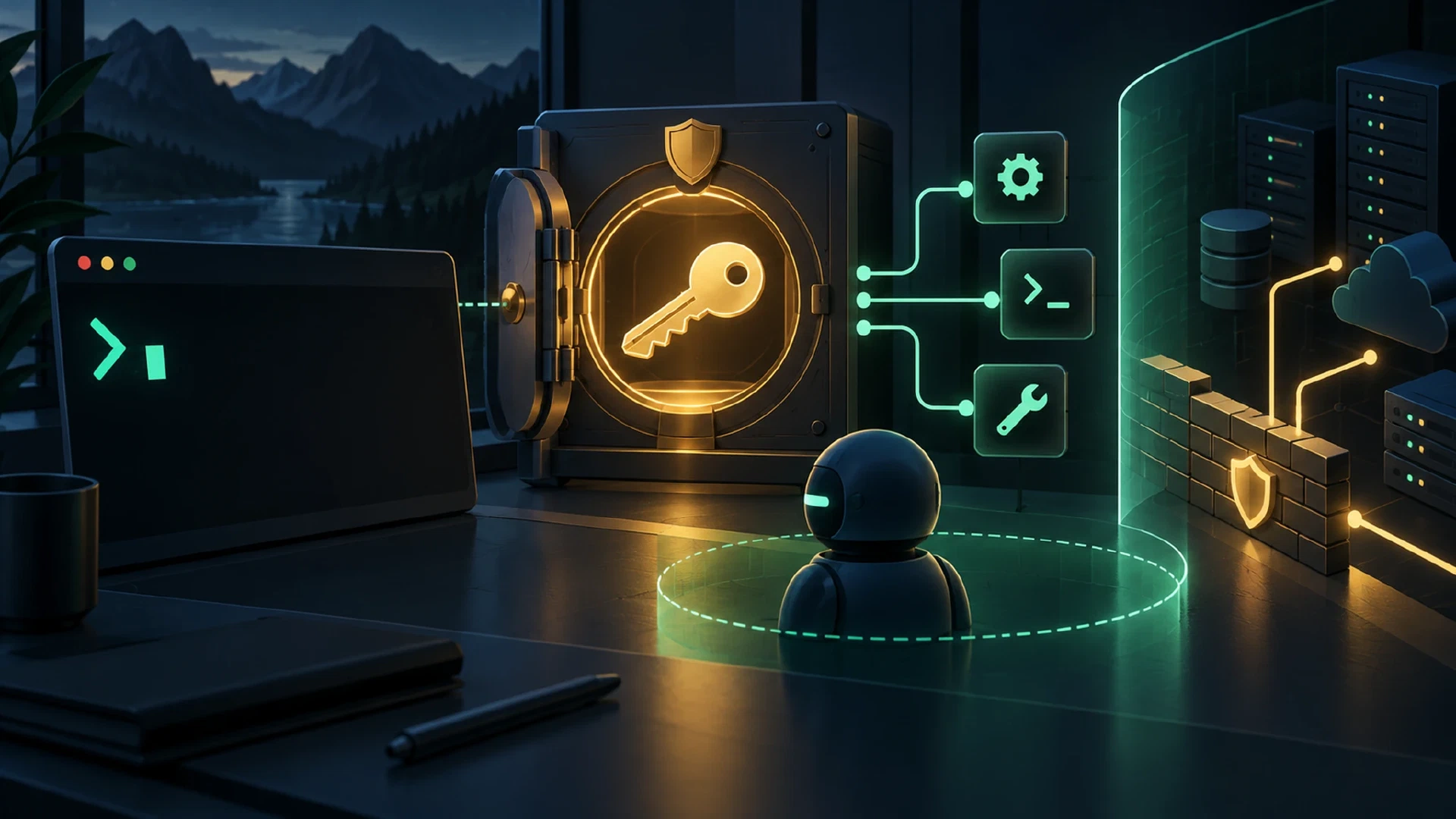
Table of Contents
A command-line agent needs useful access, not a copy of every credential. This guide presents a bounded design for 1Password CLI, the 1Password SSH Agent, Bitbucket Git access, and Model Context Protocol (MCP). The first workflow uses synthetic names, read-only actions, and human approval at the SSH boundary.
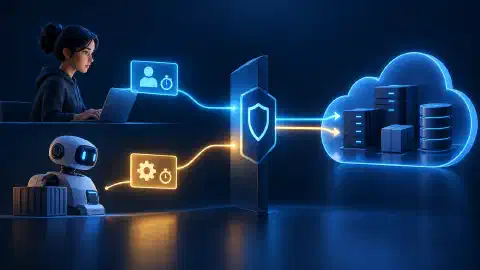
The key distinction is simple. Interactive SSH uses consent through the 1Password SSH Agent. Unattended automation needs a separate identity, narrow access, and a different key lifecycle. Do not treat an MCP connection as permission to run either workflow.
Key Takeaways
- Private-key protection: The 1Password SSH Agent performs SSH authentication while keeping private keys inside the 1Password app.
- Public-key handling: Publish only a public key to Bitbucket or a remote account. Keep the private half in an SSH Key item.
- Interactive consent: A person approves a client or terminal session before the SSH Agent uses a key.
- Unattended separation: A scheduled job needs a dedicated service account and a narrow vault scope. An interactive SSH Agent approval does not satisfy this need.
- MCP boundaries: MCP connects an agent to tools and resources. The client, server, operating system, and 1Password policy still control access.
Before You Begin
Prerequisites: Install the 1Password desktop app and 1Password CLI. Sign in through a supported 1Password account. Use an OpenSSH client. Create a test Bitbucket repository or another non-production target. Keep a second administrative path available for rollback.
Time: 30 to 45 minutes for a design review and synthetic walkthrough.
Difficulty: Intermediate. You need basic Git, SSH, shell, and access-control knowledge.
This guide does not test a live account, create a real key, connect to a real host, or register a real MCP server. Every identifier below is synthetic. Replace placeholders only inside your own controlled environment.
Version posture: This article is design guidance, not a version-pinned runbook. Confirm the installed 1Password desktop app, 1Password CLI, Git, OpenSSH, MCP host, and MCP server versions before testing. The examples below remain untested.
Why Keep Private Keys Unread
An SSH key pair has a public key and a private key. A remote Git service or server stores the public key. The client proves possession of the private key during authentication. The private key does not need to travel to the remote service.
The 1Password SSH Agent extends this model. Its documentation says SSH and Git clients authenticate through the agent while the private key stays in the 1Password app. The client receives a signing result, not a private-key file.
This boundary reduces several exposure paths:
- Source control: A private key does not enter a repository or a pull request.
- Shell history: A private-key value does not appear in a command argument.
- Temporary files: A script does not need to write a private key to
~/.ssh/. - Agent context: An LLM does not need the private-key text to request an SSH operation.
- Accidental reuse: A copied key does not remain in an old workspace after a task ends.
The boundary does not make SSH harmless. A process with permission to use the agent socket might perform actions as the approved key. Host-key verification, remote account limits, repository permissions, command policy, and process isolation still matter.
The private-key boundary protects key material. The boundary does not approve a remote command or prove the target host is trusted.
Interactive SSH Consent
Configure a dedicated vault for agent keys. Use the SSH Agent configuration file to select the smallest key set and a host-specific key. Do not expose every eligible key from every built-in vault to an automation process.
The 1Password SSH Agent security model ties approval to a key and a requesting process. The prompt identifies the process and key. The person then approves the request through the configured authentication method.
1Password documents several approval scopes. Per-key and per-application approval is the default. A terminal-session scope narrows approval to a tab or session. Per-request approval asks again for every request. An all-process approval option exists, but this option gives every process under the current operating-system user access for the session.
Use the narrowest approval scope suitable for the task. A systems-administration agent should run in a dedicated terminal or sandbox. Do not approve every process when a single terminal session is enough.
The approval session is not a permanent grant. 1Password records the authorization for the configured period or until the app locks or quits. When the app is locked, the agent does not retain private keys for later use. The SSH Agent process continues in the background when the supported setting is enabled while 1Password is closed, but a new signing request requires 1Password to be unlocked.
The 1Password SSH setup guide shows the general flow: generate or import a key, publish the public key, enable the SSH Agent, configure the SSH client, run an SSH or Git command, and approve the request. The exact socket path differs by operating system. Use the current platform instructions instead of copying a path from another machine.
The 1Password app must be unlocked before a new signing request succeeds. The agent process might continue in the background while the app is closed. A locked app does not release private-key material for signing.
Public Keys and Bitbucket
The
1Password key-management guide
documents SSH Key items, key generation, key import, public keys, fingerprints, and private keys. The CLI example uses op item create --category ssh to create an SSH Key item. 1Password CLI generates an Ed25519 key by default for this example and redacts the private key in its output.
Bitbucket Cloud uses the normal Git and OpenSSH command-line workflow. Its command-line guide describes Git operations from a local repository. Its SSH configuration guide lists SSH remote forms and supported public-key formats.
Treat Bitbucket as the public-key consumer. Register the public key or fingerprint through the approved Bitbucket account or repository setting. Keep the private key in 1Password. The Git client asks the SSH Agent to sign. The client does not read a private-key file.
For the Bitbucket access-key scope, registration path, and read-only Git test, see Bitbucket Cloud SSH Keys and Git CLI: Read-Only Access for AI Agents .
The Bitbucket documentation calls this a Git CLI workflow. This article does not assume a separate Bitbucket MCP server or a product named Bitbucket CLI. A Bitbucket-specific CLI needs its own current documentation and its own permission review.
The Agent and MCP Boundary
Use the current MCP specification when reviewing a new server.
The 2025-06-18 specification URL in the following background paragraph is a historical version. Use the 2026-07-28 specification for new reviews.
MCP standardizes connections between an LLM application, a client connector, and a server. A server offers tools, resources, or prompts. The specification also says hosts must obtain user consent before exposing data or invoking tools.
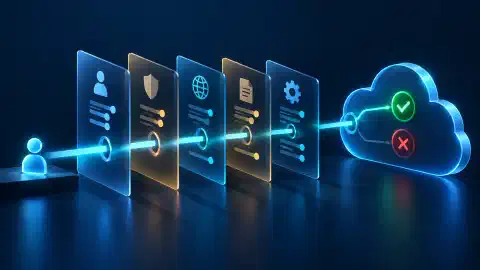
MCP itself does not grant permissions. An MCP tool still runs within the permissions of its server process, operating-system user, network path, cloud account, and configured credentials. A tool description is not an authorization policy.
The 1Password Security for AI documentation describes an Environments MCP Server and secure MCP configuration patterns. The same page describes runtime loading of MCP configuration values from 1Password. These pages do not define a generic 1Password SSH-key MCP product or a universal SSH workflow for every agent client.
Use MCP as a narrow control surface:
- Read tools: Inspect service status, repository metadata, or approved logs.
- Plan tools: Prepare a command or change record without executing the command.
- Approval tools: Request a human decision before a remote write.
- Write tools: Keep disabled until the target, command, scope, and rollback plan are explicit.
The agent should receive references, metadata, and operation results. The agent should not receive private-key text, a vault-wide item dump, or an unrestricted shell.
A Safe First Policy
Start with a written policy before enabling an agent. Keep the policy close to the MCP configuration, but do not place credentials in the file.
agent_policy:
  purpose: "Read-only repository and system inspection"
  identities:
    interactive_ssh: "1Password SSH Agent with per-terminal consent"
    unattended_jobs: "Dedicated service account with one narrow vault"
  allowed:
    - "Read repository metadata through Git"
    - "Read approved service status and logs"
    - "Run one synthetic SSH connectivity check"
  approval_required:
    - "Any remote write"
    - "Any package, firewall, clock, or service change"
    - "Any new host-key acceptance"
    - "Any private-key export"
  denied:
    - "Read or print private-key fields"
    - "List every vault or every item"
    - "Write tokens or secrets to shell profiles"
    - "Run arbitrary commands from tool output"
  rollback:
    - "Revoke the service account"
    - "Remove the public key from the target"
    - "Disable the MCP server entry"
    - "Lock 1Password and end the agent session"
This policy is an example, not a 1Password configuration format. Store the real policy in the control plane used by your agent client. Review every tool against the policy before enabling each tool.
Service Accounts and Secret References
A service account gives an automated process its own identity. The 1Password CLI script guide recommends service accounts for least-privilege access to selected vaults. This separates an unattended job from a person’s SSO, MFA, vault inventory, and daily account.
A secret reference names a value without placing the value in source. The
1Password CLI reference
uses the form op://vault/item/field. The reference is safe to store only when the surrounding process still has narrow access. A reference does not bypass policy.
Use op read when one command needs one value. Use op run when a child process needs a controlled set of runtime values. Use op item create when a new SSH Key item needs to exist in the approved vault.
Do not confuse runtime injection with private-key protection. An API token passed as an environment variable is still visible to the child process. A private key passed through an environment variable is worse because the value expands exposure to process inspection, crash reports, debug output, shell tracing, and accidental logging.
Prefer a reference in source and a runtime value in the smallest possible process. Keep the process short-lived. Disable shell tracing. Do not print the environment. Remove temporary files after a failed run.
Safe First Workflow
The sequence below separates public-key registration, interactive SSH, MCP discovery, and unattended design.
1. Define the target
Write down the target class, remote account, intended repository or command, host-key source, approval owner, and rollback action. Use a synthetic record during the first exercise.
target_class: test-repository
remote_account: git
operation: read-only connectivity check
host_key_source: approved administrator record
approval_owner: named operator
rollback: remove public key and revoke test identity
Expected result, untested: The record identifies one target and one operation. The record does not contain a hostname, IP address, token, private key, or personal data.
2. Create or select the SSH Key item
The official 1Password SSH key guide documents the CLI creation pattern. The command below uses a synthetic title and named test vault.
op item create --category ssh --vault "synthetic-test-vault" --title "synthetic-agent-admin-key"
Expected output, untested: 1Password creates an SSH Key item in the named test vault and redacts the private key in the terminal output. The command changes 1Password state. The exact human-readable output depends on the CLI version and sign-in state.
Capture the returned item identifier in the test record without copying the private-key field. Use the identifier or the exact item title for later field-specific reads only after the item schema is confirmed.
Do not redirect this output to a shared log. Capture only the item identifier, public-key fingerprint, and approval record when the local procedure supports safe structured output.
3. Handle the public key
Open the SSH Key item in 1Password and use its Copy Public Key action. Use a field-specific reference only after you confirm the public-key field label in your own account. Do not dump the complete item.
PUBLIC_KEY_REF="op://synthetic-test-vault/synthetic-agent-admin-key/synthetic-public-key-field"
op read "$PUBLIC_KEY_REF"
Expected output, untested: One synthetic OpenSSH public-key line or a public-key value from the confirmed field. The placeholder field name above is not a promise about your item’s field label.
Register the public key in the approved Bitbucket account, Bitbucket repository, or remote account. Never paste the matching private key into Bitbucket. The Bitbucket SSH guide also recommends recording the Bitbucket host key before the first connection.
For Bitbucket, fetch the published host-key record and compare the record with an independent trusted copy before adding a line to ~/.ssh/known_hosts. Use strict host checking after the comparison passes. Do not accept a changed host key during an agent run.
4. Enable interactive SSH
Turn on the 1Password SSH Agent in the desktop app. Configure OpenSSH with the platform-specific IdentityAgent or SSH_AUTH_SOCK value from the
official setup guide
. Limit the first test to one repository or one non-production account.
ssh-add -l
git ls-remote "<repository-ssh-url>" HEAD
Expected output, untested: ssh-add -l lists public fingerprints offered by the agent. Git requests access through the agent. 1Password displays a consent prompt. A successful read returns a commit reference. The repository placeholder above requires replacement in a controlled test.
The command uses a repository placeholder. Replace the placeholder only in a controlled test. Do not approve a prompt for a target or process you did not expect.
5. Add MCP after the SSH path works
First verify the SSH client and target without MCP. Then add one read-only MCP server or local connector. Give the agent a tool such as read_status or prepare_command. Do not start with a general shell tool.
The MCP configuration should reference runtime values through the client’s supported environment mechanism. The 1Password AI security guide describes replacing plaintext MCP configuration tokens with environment variables loaded from 1Password. Keep the reference or variable name in configuration. Keep the resolved value out of the agent transcript.
This section describes a design, not a tested MCP configuration. No client, server, transport, version, or fixture is pinned here. Validate one read-only server in a separate test profile before connecting an agent to a production system.
6. Record the result
Record the target class, tool name, approval decision, public-key fingerprint, command outcome, and cleanup result. Omit secret values. Mark each output as observed or expected.
Expected result, untested: The agent reads status, proposes a bounded command, receives explicit approval for the SSH request, completes the read-only operation, and produces a record without private-key text.
Synthetic Command Sequence
The following sequence shows the order without using real infrastructure. These commands are examples only. They were not run during article preparation.
op --version
op item create --category ssh --vault "synthetic-test-vault" --title "synthetic-agent-admin-key"
op read "op://synthetic-test-vault/synthetic-agent-admin-key/synthetic-public-key-field"
ssh-add -l
git ls-remote "<repository-ssh-url>" HEAD
Expected output, untested:
2.x.y
SSH Key item created. Private key: redacted
ssh-ed25519 AAAA<synthetic-public-key> synthetic-key-label
256 SHA256:<synthetic-fingerprint> synthetic-agent-admin-key (ED25519)
<synthetic-commit-id>        HEAD
The output block is illustrative. The block does not represent a run against a 1Password account, Bitbucket, Git provider, or remote host. A production record should store only approved metadata and a success or failure state.
Interactive Versus Unattended Access
| Access mode | Identity | Private-key path | Approval model |
|---|---|---|---|
| Interactive SSH | Human account through 1Password SSH Agent | Private key stays in the 1Password app | Human approves a process, terminal session, or request |
| Scheduled read | Dedicated service account | op run supplies narrow runtime values | Job policy and service-account scope |
| Scheduled SSH | Dedicated automation identity | Key export remains a last-resort design | Job isolation, short lifetime, host restriction, and rotation |
| Agent write | Human or task-specific identity | Depends on the approved integration | Human approval before each defined change |
Do not schedule a workflow around an interactive SSH Agent prompt. Use a separate automation design or keep the step human-operated.
For unattended jobs, create a service account with access to one vault or a small set of items. Give the job one purpose. Use a dedicated repository or server account. Add host-key verification. Set an execution timeout. Log action metadata without secrets. Rotate or revoke the identity after the test.
If an unattended job truly needs an SSH private key, use a dedicated automation key with a narrow remote account and a documented end date. Fetching the private key with op read still exports key material across a process boundary. This design has a larger blast radius than the 1Password SSH Agent. Prefer a platform identity, deploy service, or other workload identity when the target supports one.
Why Plaintext Environment Variables Raise Risk
Environment variables keep secrets out of source files, but they do not make secrets invisible. A child process reads its environment. Process inspection, crash handlers, debug output, shell tracing, and copied command records might expose values.
1Password documents op run as a runtime method for loading references into a subprocess. Use op run for values a process truly needs. Keep the child process short-lived and restrict its command. Do not pass a private key through SSH_PRIVATE_KEY, KEY, or a similar variable when the SSH Agent removes the need for export.
The safer order is:
- Use the SSH Agent for interactive SSH.
- Use public-key registration for Bitbucket or the remote account.
- Use
op runfor a narrow unattended child process. - Use
op readfor one value when a child process does not need a full environment. - Export a private key only after a written exception, narrow scope, cleanup plan, and rotation plan.
Decision Table
| Need | Preferred path | Reason to stop or redesign |
|---|---|---|
| Human runs Git over SSH | 1Password SSH Agent | Stop if the prompt names an unexpected process or key |
| Register a repository key | Read or autofill the public key | Never copy the private key into the repository service |
| Agent reads service status | Read-only MCP tool with OS-level scope | Stop if the tool exposes an unrestricted shell |
| Agent proposes a remote change | Plan tool followed by human approval | Stop if target, command, or rollback is unclear |
| Job reads one API token | Service account plus op read or op run | Stop if the token enters source, logs, or a global profile |
| Job needs SSH access | Workload identity or dedicated automation key | Stop if the job requires a personal key or broad account |
| MCP config needs a token | Runtime reference loaded by the supported client | Stop if a plaintext token is committed to config |
Failure Handling
Unexpected SSH consent prompt: Deny the prompt. Check the process name, terminal session, key fingerprint, repository target, and host key. Review the SSH client configuration before retrying.
No SSH Agent socket: Confirm the 1Password desktop app is installed through a supported method, the SSH Agent is enabled, and the client uses the platform-specific socket. The official SSH Agent page lists operating-system requirements and socket setup links.
Public-key authentication fails: Check the selected public key, remote account, repository permission, host key, and SSH configuration. Use a public fingerprint comparison. Do not solve the error by exporting an unrelated private key.
op read denies access: Check the service-account vault scope, item identifier, field reference, sign-in state, and item status. Reduce the reference to one approved item. Do not widen the vault grant as a first response.
op run exposes a value: Stop the job. Preserve only the minimum incident record. Remove copied logs and temporary files according to your retention procedure. Rotate the affected secret or key. Review shell tracing, process inspection, crash reports, and MCP transcript retention.
MCP tool behaves unexpectedly: Treat tool output as untrusted data. Stop before executing commands suggested by the output. Inspect the server source, configuration, permissions, and transport. The MCP host must obtain user consent. The specification also provides implementor guidance for consent and access controls, but the protocol does not replace your review.
Rollback and Removal
Rollback starts with access removal, not file deletion.
- Stop the agent or scheduled job. Disable the MCP server entry or disconnect the client.
- Lock 1Password. End the interactive SSH authorization session.
- Remove the public key. Delete the test key from Bitbucket, the repository, or the remote account.
- Revoke the service account. Remove its vault access and invalidate its token.
- Delete the test SSH Key item after confirming no approved workflow uses the item.
- Remove temporary configuration. Delete test references, local socket overrides, and generated logs.
- Review evidence. Confirm the rollback record contains no private key, token, or environment dump.
A deleted local file does not revoke a public key, service account, cached token, or remote authorization. Remove each grant at its source.
Troubleshooting
The agent asks for a key on every command
Check the selected authorization scope. Per-request approval is more restrictive. A terminal or application session might have ended. 1Password also asks again after a lock or quit event.
The agent sees a private key in its transcript
Stop the workflow and rotate the key. Inspect the MCP server response, shell command, debug log, and tool wrapper. Replace private-key reads with SSH Agent use for interactive tasks. For jobs, replace a personal key with a dedicated identity and a documented exception.
A key list contains too many identities
The 1Password SSH Agent exposes eligible keys from its configured vaults. Use a scoped agent configuration or host-specific SSH configuration. The agent documentation also notes the OpenSSH server six-key limit.
A command works by hand but fails in a job
Compare identity, vault scope, environment, host-key data, working directory, and approval assumptions. An interactive 1Password session includes human consent. A scheduled job does not. Design the job as a separate access mode.
The MCP server is connected but the task fails
Connection does not prove authorization. Check tool discovery, server credentials, client consent, operating-system permissions, network access, and target-side permissions in separate steps. Keep the first test read-only.
Next Steps
Use the current 2026-07-28 MCP specification for new approvals. Any 2025-06-18 specification link in this article is historical background.
Start with one synthetic repository and one read-only MCP tool. Record each expected result as untested until a controlled environment produces evidence. Then repeat the workflow with a non-production target, a named operator, a verified host key, and a written rollback record.
Read the 1Password CLI reference for current command flags. Read Load secrets into scripts before creating service-account automation. Read the MCP specification before approving tools from a new server.
Keep interactive SSH human-approved. Keep unattended access separate. Keep private keys unread whenever the target supports agent-based authentication.

Related Posts