CompTIA A+ (220-1201): Hardware Components
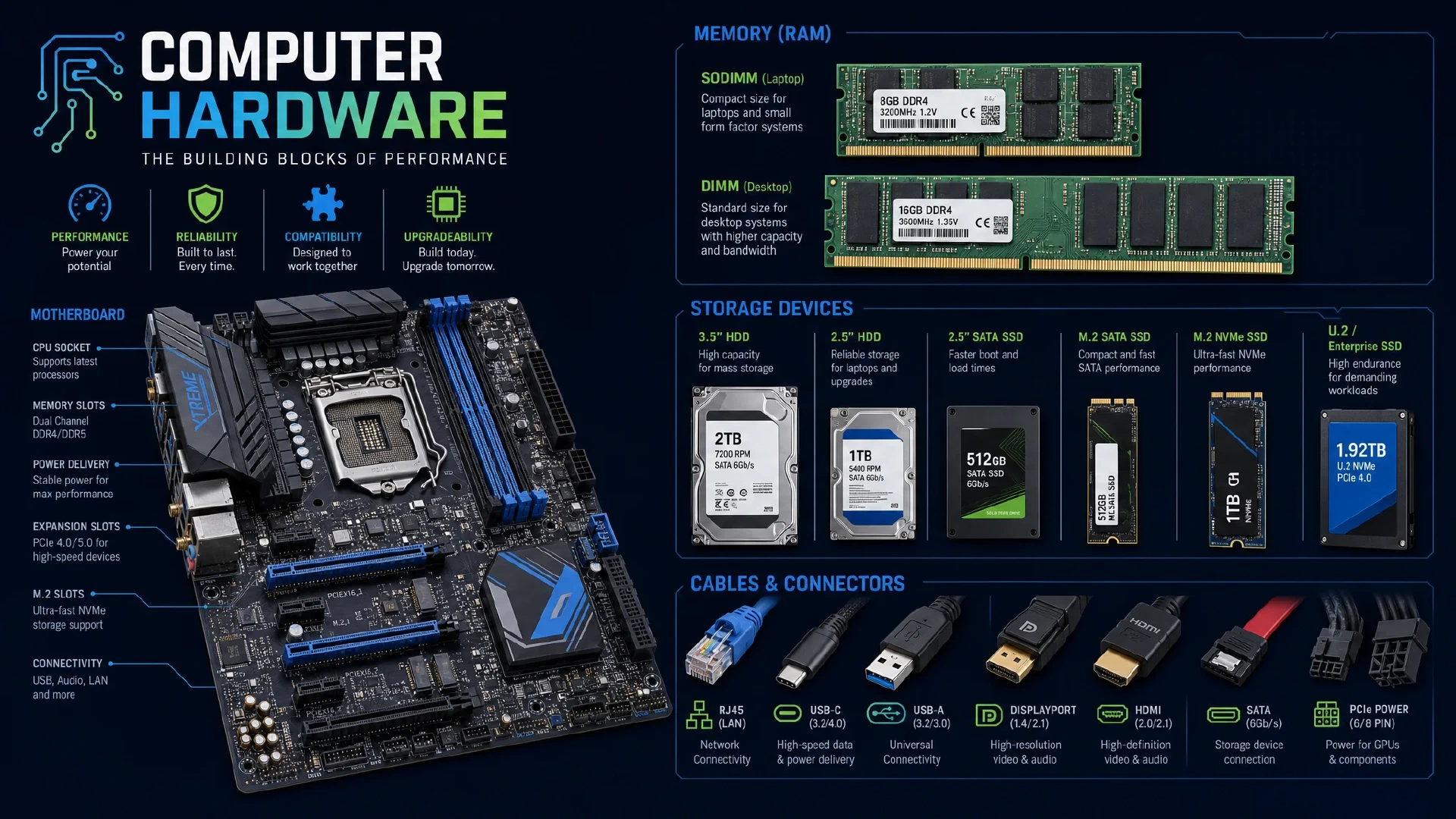
Table of Contents
Click Here to Return To the CompTIA A+ Course Page
Hardware is 25% of the CompTIA A+ 220-1201 Core 1 exam, the largest Core 1 domain. This module covers cables, RAM, storage, motherboards, CPUs, power supplies, and printers. This domain is the hands-on heart of A+, so learn the parts by sight and by spec.
Hardware is the physical foundation of every system you support. You pick the right RAM, install the correct drive, seat a CPU without bending pins, and size a power supply that will not fail under load. This module covers the components you touch every day.
Cables and Connectors
You match each cable to its job.
| Cable | Use |
|---|---|
| Cat 5e/6/6a | Copper Ethernet, RJ45 connector |
| Fiber (single-mode) | Long distance, SC/LC connectors |
| Fiber (multimode) | Short distance, higher bandwidth |
| USB-C | Reversible data, power, and video |
| SATA | Internal drive data |
| HDMI/DisplayPort | Digital video and audio |
Single-mode fiber carries one light path over long distances. Multimode fiber carries many paths over short runs inside a building.
RAM Characteristics
You install the right memory for the board and workload.
- DIMM modules go in desktops, SODIMM modules go in laptops.
- DDR generations are not interchangeable: DDR3, DDR4, and DDR5 use different notches and voltages.
- ECC (Error-Correcting Code) RAM detects and fixes memory errors in servers, while desktops use non-ECC.
- Channel configuration (single, dual, quad) boosts bandwidth when you populate matched slots.
Install matched pairs in the correct colored slots to enable dual-channel mode.
Storage Devices
You choose storage by speed, interface, and form factor.
| Drive | Interface | Speed |
|---|---|---|
| HDD | SATA | Slowest, mechanical |
| SATA SSD | SATA | Faster, no moving parts |
| NVMe SSD | PCIe (M.2) | Fastest |
RAID combines drives for speed or redundancy:
| Level | Behavior | Minimum drives |
|---|---|---|
| RAID 0 | Striping, speed, no redundancy | 2 |
| RAID 1 | Mirroring, full redundancy | 2 |
| RAID 5 | Striping with parity | 3 |
| RAID 6 | Double parity | 4 |
| RAID 10 | Mirror plus stripe | 4 |
RAID is not a backup. It protects against drive failure, not against deletion or ransomware.
Motherboards, CPUs, and Add-on Cards
You install the core components and configure firmware.
Form factors set board size: ATX is full-size, microATX is smaller, and Mini-ITX is the smallest. CPU architecture spans x86/x64 for desktops and servers and ARM for phones, tablets, and modern laptops.
You set firmware in BIOS/UEFI: boot order, virtualization support, Secure Boot, and a TPM for encryption keys. UEFI replaced legacy BIOS with a GUI, mouse support, and drives larger than 2 TB.
Common UEFI settings to know:
- Boot order / boot priority
- Secure Boot (on/off)
- TPM / fTPM enable
- Intel VT-x / AMD-V virtualization
- XMP/EXPO memory profile
Power Supplies
You size the power supply unit (PSU) to the system load with headroom. You match input voltage (110V/230V), wattage, and connector types (24-pin ATX, 8-pin CPU, PCIe for GPUs). An undersized PSU causes random shutdowns under load.
Printers
You deploy and maintain multiple printer types.
| Type | How it prints | Maintenance |
|---|---|---|
| Laser | Toner fused by heat | Replace toner, maintenance kit |
| Inkjet | Sprayed liquid ink | Clean heads, replace cartridges |
| Thermal | Heat on special paper | Replace paper, clean heating element |
| Impact | Pins strike a ribbon | Replace ribbon, used for carbon copies |
The laser imaging process has seven steps: processing, charging, exposing, developing, transferring, fusing, and cleaning. You configure drivers, network connectivity, and secure features like PIN-released printing.
Next Steps
Continue Core 1 with Virtualization and Cloud Computing and diagnose failures in Hardware and Network Troubleshooting . Review Networking Fundamentals for cabling context. Return to the CompTIA A+ Course and review tips for passing CompTIA exams .